
Creating and editing pages
Pages in your app builder allow you to completely customize the pages of your app by inserting vertical and horizontal tabs, inserting images and buttons, embedding data from another source, and more. These are called page components and can be used to embed forms, images, reports, buttons, charts, and any custom data.
Creating a page for a new app
Open your app and click Manage > Edit to open the app builder.
In the app builder, click the + Quick create icon in the left navigation menu and click Page.
- You will get two options: Build with AI and Create from scratch.
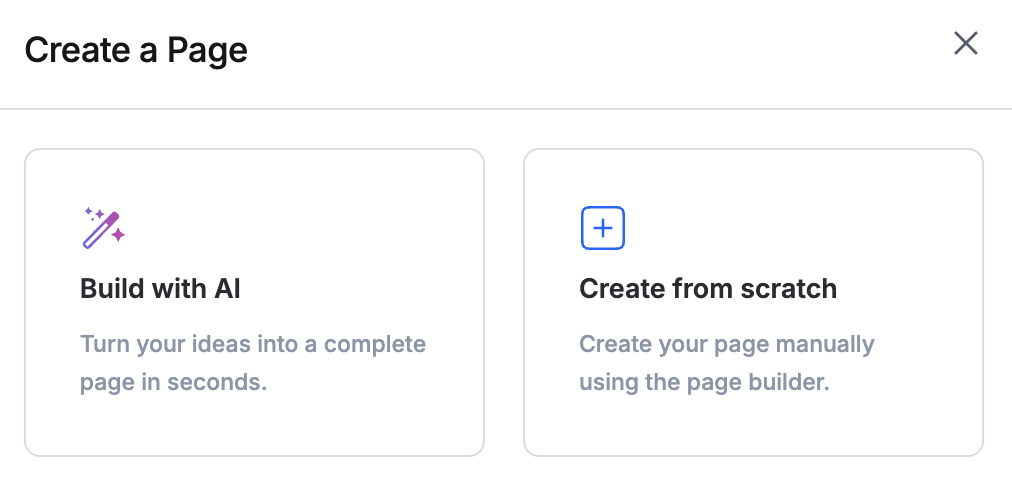
Building with AI
- To create a page using AI, click Build with AI and describe the page you want to create. Then, select the roles the page is intended for from the dropdown below. Choosing roles is required. You can choose multiple roles, if needed.
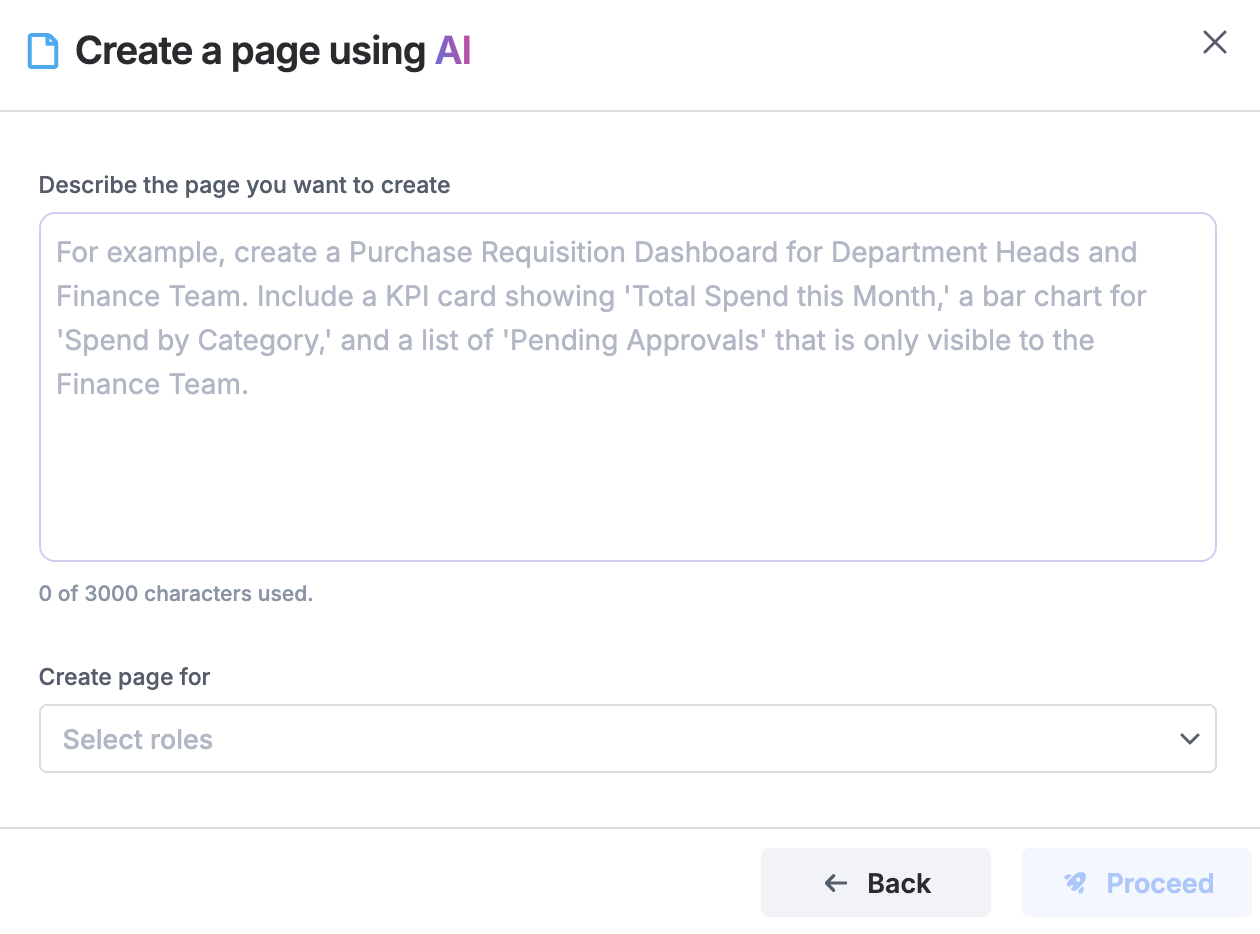
- Once you're satisfied with the vision you've described, click Proceed.
Based on your description and selected roles, our AI automatically assembles the most relevant workflows, reports, and related content to generate a page that’s tailored to those roles.
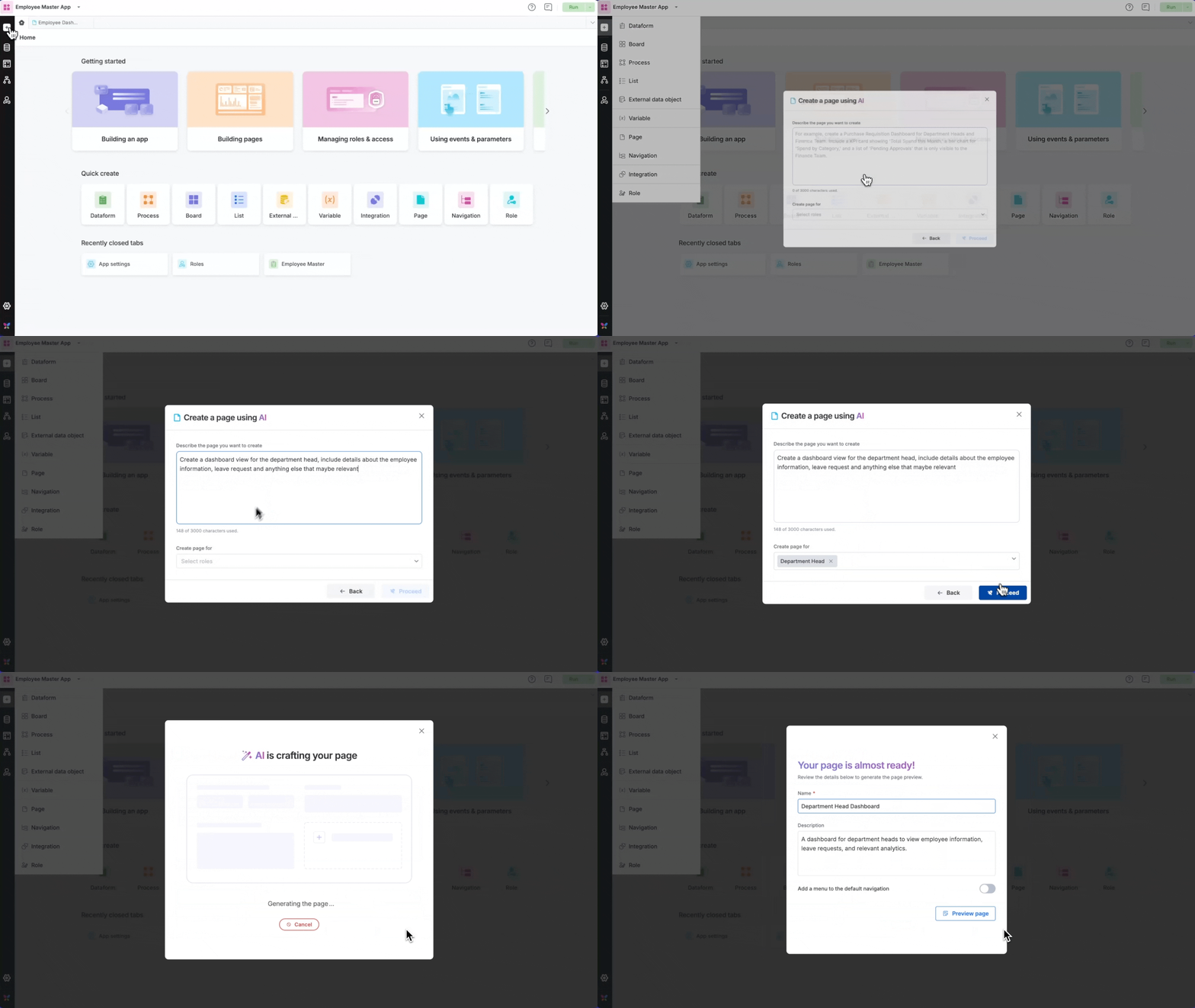
3. Review the page name and description. You can also choose whether to add the page to the navigation menu. Click Preview to generate a preview of the page.
4. In the preview, review the page layout and the content that has been included. If everything looks good, click Create page to finalize it.
5. If the preview doesn’t meet your expectations, you can discard it and start over with a new prompt.
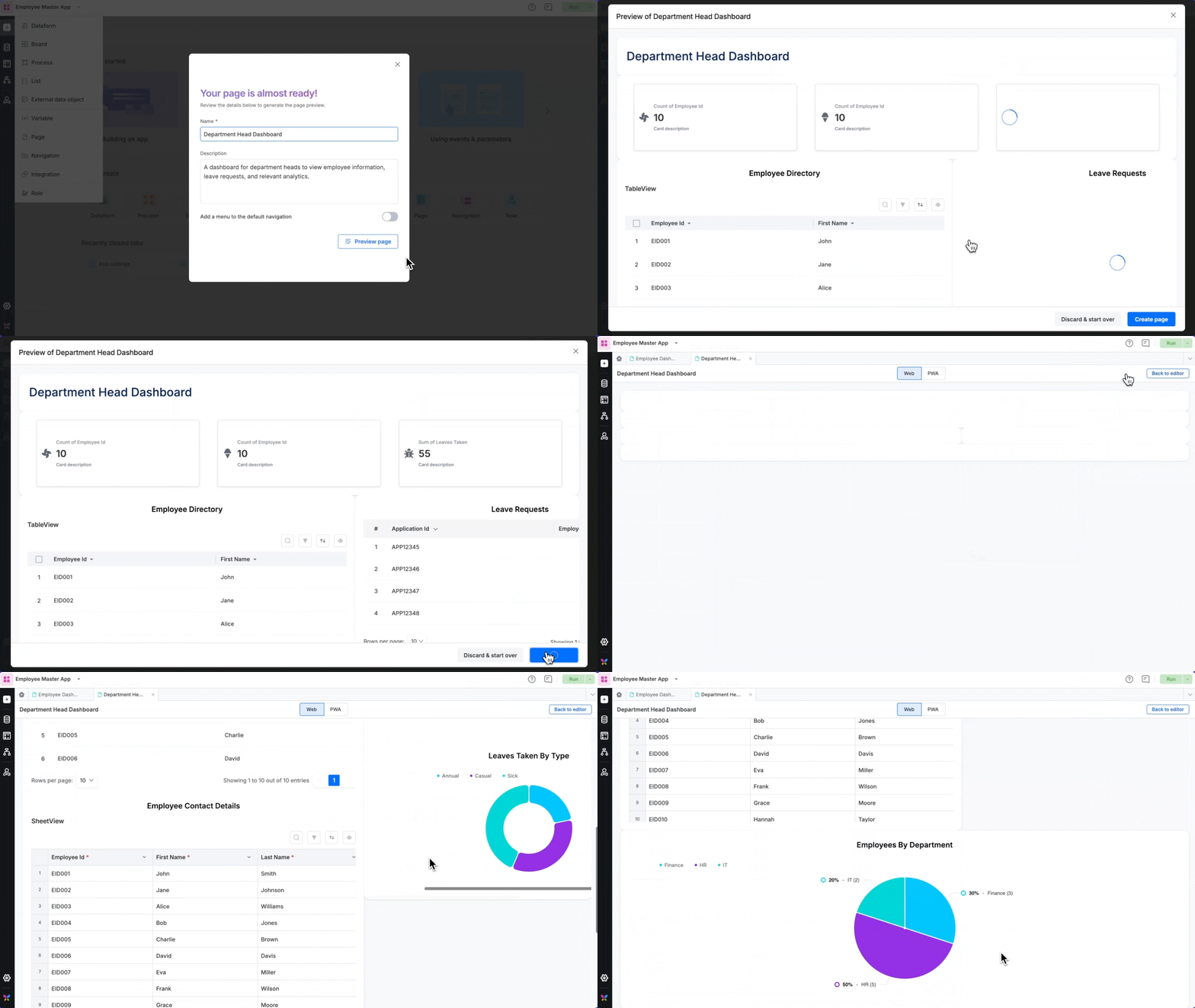
Once your page is created, you can edit and customize it as usual in the page builder.
Note:
AI does not create new workflows, forms, or reports. It only assembles content that already exists in your app. If your app has limited or no relevant workflows, the generated page may be limited or may not be created. To ensure the best results, please make sure your app includes meaningful forms, views, reports, and other relevant workflows and that they are shared with the roles for which you are creating the page.
Creating a page manually
- In the app builder, click the + Quick create icon in the left navigation menu and click Page.
- Click the Create from scratch option to create a page manually.
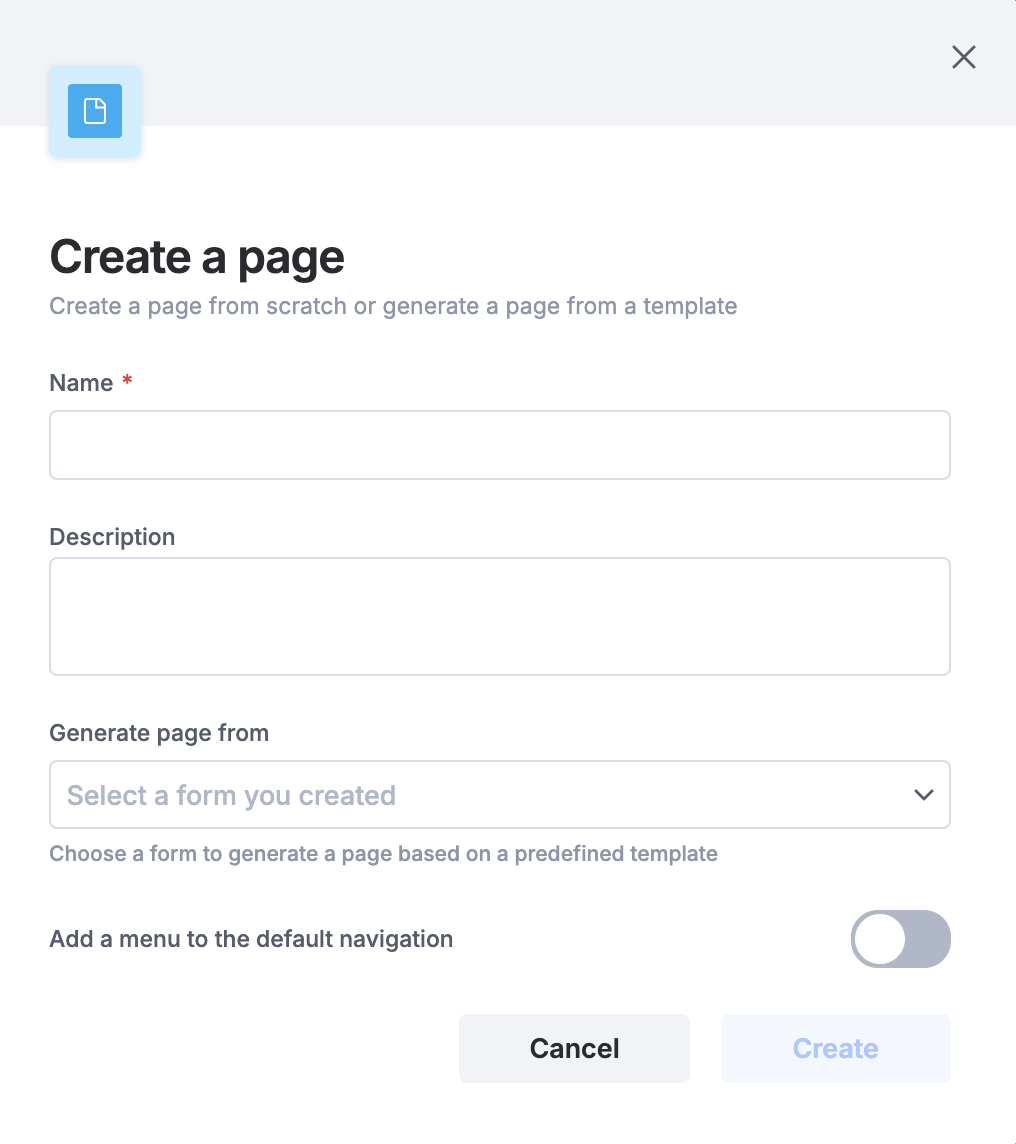
- Enter an appropriate Page name, Description, and Page type. The page type can either be page or pop-up. This is simply how the page will be displayed in the app.
- Then click Create page. You will be directed to the page builder.
- Here, you can add and configure multiple components such as Cards, Tabs, Images, Forms, IFrame, and Buttons onto your page grid to create your app page.
Editing an existing page
Follow the steps below to add or remove components from the page, edit the page background color, or other properties:
- In the app gallery, find and open the app that you want edit.
- In the Left nav, click Pages. Here you will see all the pages that you've created for your app.
- Click the page that you want to edit. Inside the page builder, access the Components section to update the components inside your page.
- Once you make your changes, click Save. You can click Save & Preview to open a preview of your page.
Previewing a page in web and PWA
When you preview your page, it can be viewed on web mode. The web mode allows you to view your page and its associated components as if you were using a web client. The PWA mode on the other hand, renders the app page in a mobile view. You just have to toggle between these views using the buttons provided on top of the page. Click Back to editor to access the page builder.

Important note on concurrent editing of a page in an app:
To ensure data integrity and prevent conflicts, our system manages concurrent editing with a "first to save" rule. This means that if two or more users edit the same app page at once, the changes from the person who clicks Save first are successfully recorded.
If another user saves the app page before you, then your version of it becomes outdated. When you try to save your edits, you will be prompted to refresh the tab to load the latest updates.
Please be aware that the act of refreshing the tab will discard all of your unsaved work in the current tab.
To avoid losing progress, we strongly recommend coordinating with your team to ensure only one person is actively editing a shared page at a time.