
Introducing MCP: Work in Kissflow from your AI assistant
Approving a request means stopping what you are doing, opening Kissflow, and finding the task. The same goes for a quick comment, or checking what is waiting on you.
With MCP (Model Context Protocol), you can connect an AI assistant such as Claude or ChatGPT and simply ask. The assistant acts within your own Kissflow permissions, so connecting one gives you no access you did not already have, and it reaches only what you can already open.
How it helps
Once an assistant is connected, you can ask it to:
- Approve a request, or complete a task assigned to you
- Create an item, or update one that already exists
- Add a comment
- Tell you what is waiting on you, and pull details from your items and requests
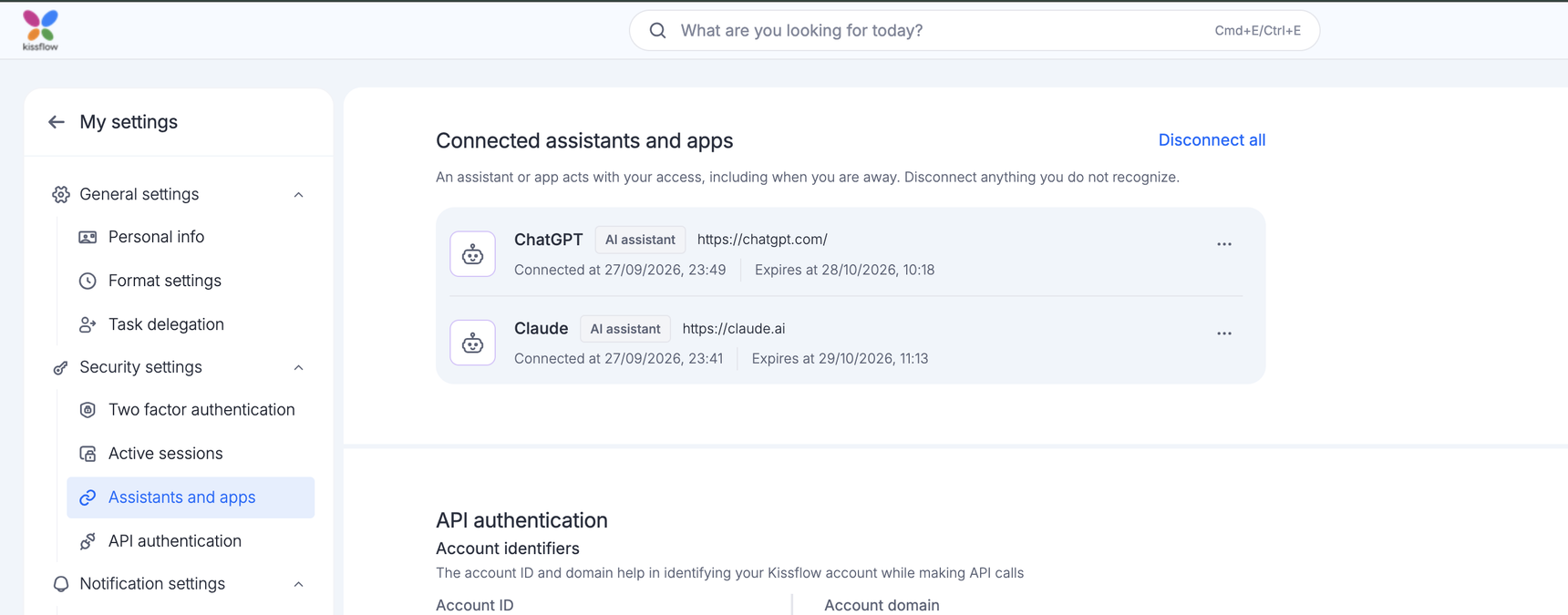
You connect an assistant once, from the assistant itself, and approve it on a Kissflow consent screen. Everything you have connected appears under My settings > Security settings, and you can disconnect it at any time.
Admins stay in control
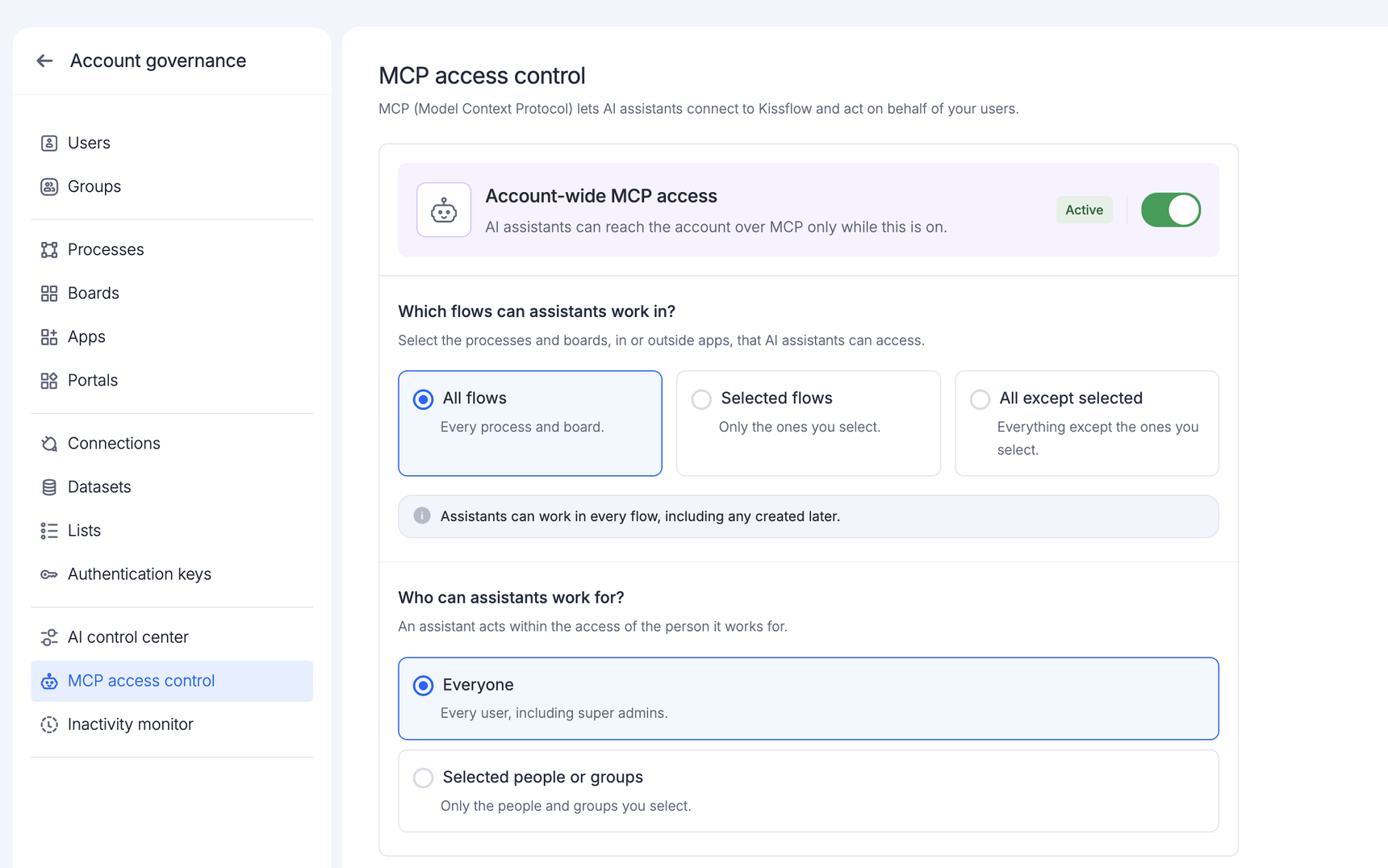
MCP access control lets a Super Admin or an IAM Admin decide who can use an assistant and which processes and boards it can work in. Turning access off stops every connected assistant at once.
In the audit log, an action taken through an assistant is recorded under the person it worked for, with the assistant named alongside — so you can tell your own actions from an assistant's. Filter by Acted through to see only those.
One thing to do first: MCP access starts open. Once it is enabled for your account, assistants can work in every flow, for everyone, until you change it. Open Account governance > MCP access control and set your flow and people selections before you tell your teams it is available.
Learn more from our help articles on MCP access control and Connecting an AI assistant.
Available for: Enterprise plans
Content aside
-
4
Likes
- 3 hrs agoLast active
- 3Replies
- 125Views
-
5
Following