
Connecting an AI assistant
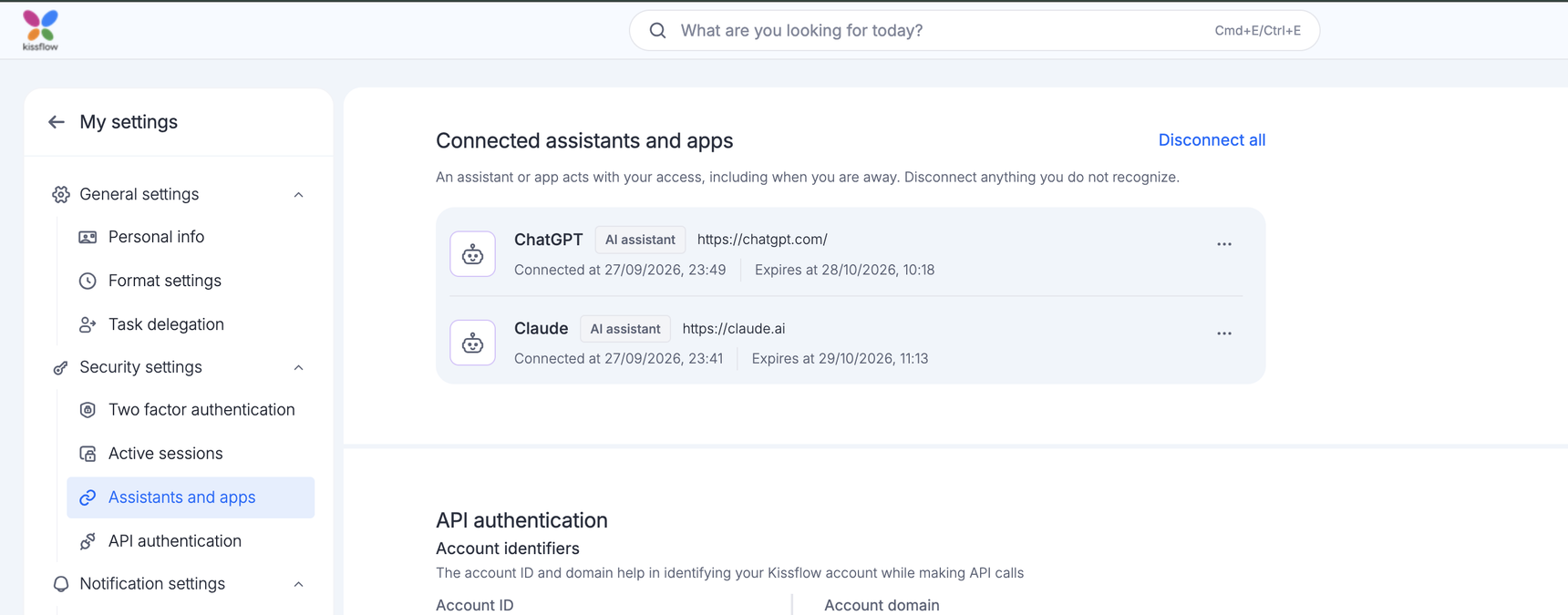
An AI assistant can work in Kissflow on your behalf, using your own access. You start a connection from the assistant, not from Kissflow, and approve it once before it can act as you. To see what you have connected, click your profile picture > My settings > Security settings > Assistants and apps.
What an assistant can do on your behalf
An assistant acts within your permissions. When you approve a connection, you grant two things together:
- See your work. Your items, tasks, requests, and the flows you can already open.
- Act on your behalf. Create and change items, comment, and complete tasks assigned to you.
Note:
Your administrator decides whether assistants can connect to your account at all, which flows they can work in, and who they can work for. If you are not included, the connection is refused.
Connecting an assistant
Instead of connecting from Kissflow, you connect from the assistant itself. The only thing you need is your account domain with /mcp after it:
https://<your account domain>/mcp
Your account domain is shown under My settings > API authentication > Account identifiers.
- Open your assistant's connector settings.
- Add a custom connector and paste the address.
- Sign in to Kissflow when the page opens, the way you normally do.
Your assistant then asks for access, and Kissflow shows you a consent screen.
Which assistants can connect
Kissflow supports one way for an assistant to identify itself: a client ID metadata document. The assistant publishes a small file about itself at its own web address, and Kissflow reads that file each time the assistant asks to connect.
So you never register an assistant in Kissflow, and you never copy a client ID or secret into it. Leave those fields empty.
Note:
An assistant that asks you for a client ID and secret, or that registers itself on the fly (dynamic client registration), cannot connect. Ask its provider whether it supports client ID metadata documents.
Approving a connection
When an assistant asks for access, Kissflow shows you a consent screen with the name the application gave, and a Not part of Kissflow badge. Kissflow does not verify who runs an application.
Caution:
Only continue if you started this. If a consent screen appears and you did not just ask an assistant to connect, click Cancel and tell your administrator.
Seeing what is connected
Each connection shows when it connected, when it expires, and a chip naming what it is, AI assistant or App. A connection made before Kissflow began recording what a connection is for shows no chip.
Note:
The expiry date moves. Each time an assistant reconnects in the background, the date is pushed out again, so a connection in regular use does not expire.
How long a connection lasts
The assistant renews its access in the background, and each renewal pushes the expiry date out by about 30 days. A connection in regular use does not expire. One left unused for about 30 days does, and you connect it again the same way.
Disconnecting an assistant
Click the More options button on a connection and click Disconnect. To disconnect everything at once, click Disconnect all in the upper-right corner of the section.
Disconnecting takes effect immediately. The assistant has to be connected again before it can be used.
Note:
Changing your password or signing out of Kissflow does not disconnect an assistant. Only Disconnect does.
If a connection is refused
Kissflow refuses a connection for one of these reasons:
| What you see | What it means | What to do |
| Your administrator has not allowed this | AI assistant access is unavailable to you in this account. | Contact your administrator for details. |
| Kissflow does not recognize this application | Kissflow could not confirm who this application is. | Start the connection again from the application. |
| This application sent a request Kissflow cannot accept | Nothing was granted, and it has not been connected. | Contact whoever maintains the application. |
| Something went wrong on our end | The connection was not made and nothing was granted. | Try again, and contact support if it keeps happening. |
| This request has expired | Connection requests are good for a few minutes and can only be used once. | Start the connection again from the application. |
Learn more about MCP access control.