Managing apps
As an app admin, you will have full control over the app in the development environment. After app deployment, you can manage the app in production and the target environment, such as staging too.
Go to Manage > Settings in your app.
- General settings
- Notification settings
- Deployment
- Public form
- Sequence number
General settings
Under General settings, you can find the name and icon of the app. To make changes to this, go to General settings within the app builder.
Notification settings
Under this section, you can set up notifications for the workflows in your app. Read more here.
Deployment
You can view the deployment history of an app in both the development and the test/production environments after deploying it.
To view deployment history in the development environment:
- Open app builder
- Click the Settings icon > App settings > Deployment history.
To open deployment history in test/production environment:
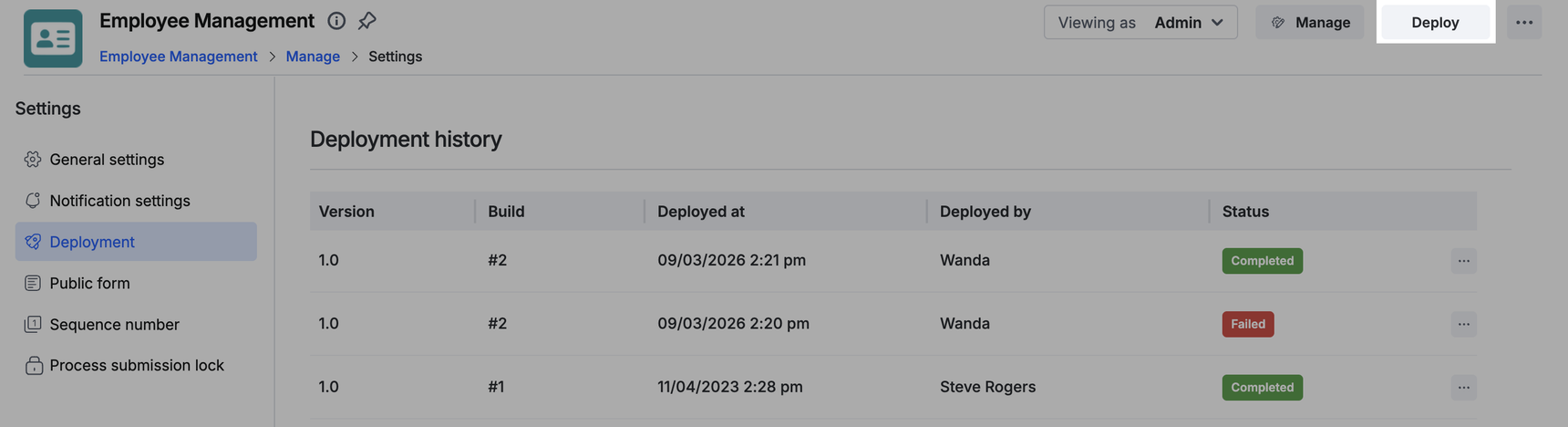
Go to Manage > Settings > Deployment.
The deployment history page displays the app's version, build, deployed by name, deployment date, and the status (completed or failed).
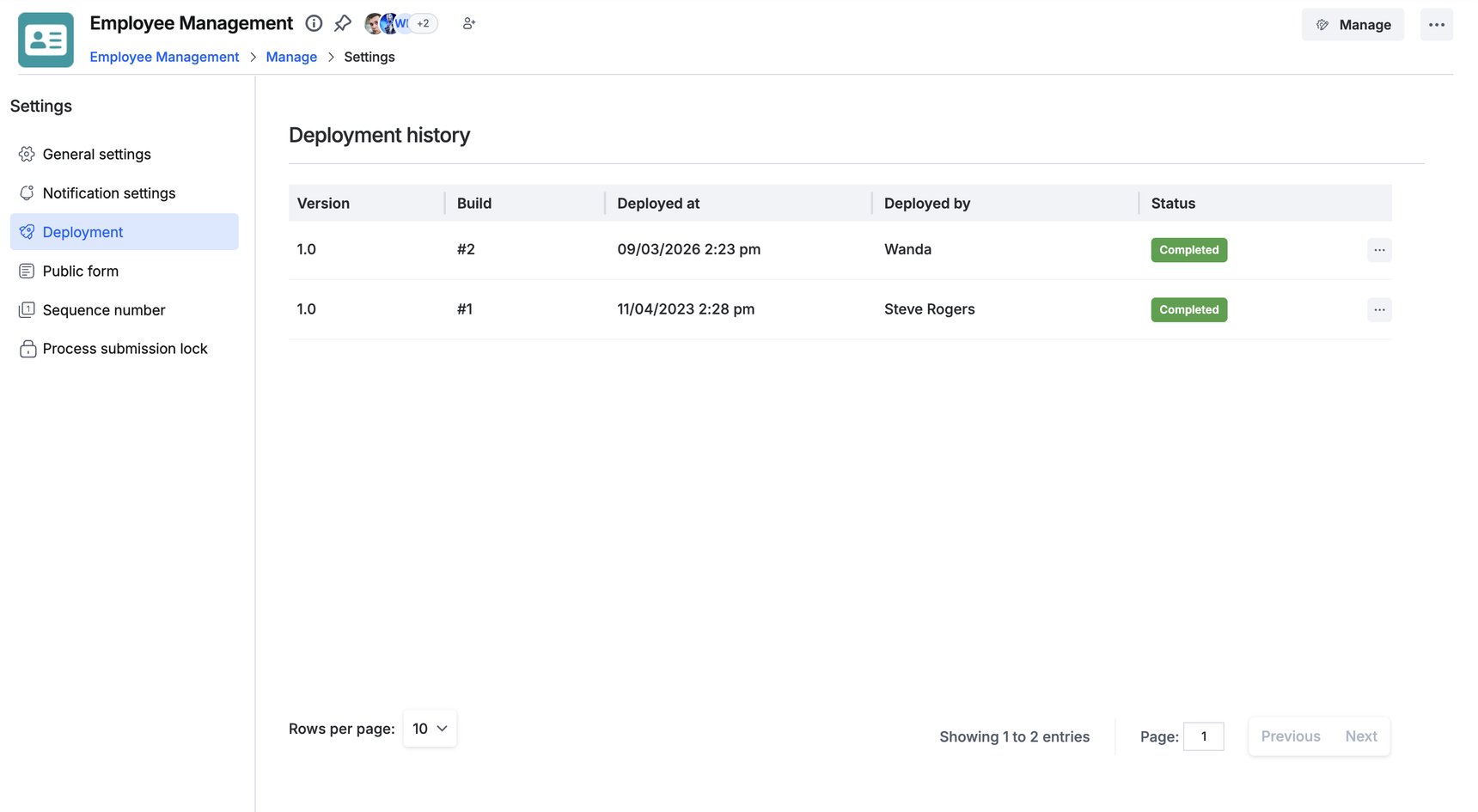
You can also check the detailed deployment history and view the changes made in the deployed app under App settings within the app builder.

Public form
You can manage all the public forms in your form here, you will have the option to turn the public form links on and off, meaning you can provide or revoke access to the public forms as you like.
Read more here.
Note:
Settings are not shared across environments.
All settings changes apply only to the environment in which they are set. For example, revoking public form access, enabling notifications, or activating a process submission lock in the development environment will have no effect on production until the same changes are made there.
Process submission lock
Process submission lock allows administrators to stop members from initiating new items on a process workflow. This is useful when the process is under active development or undergoing significant changes. The process remains locked until an administrator disables it.
When the lock is enabled:
Users cannot create or initiate new items.
No new items will appear in the feed.
Items already in progress will continue to follow the workflow uninterrupted.
Items in draft cannot be submitted until the lock is removed.
Locking a process through the Manage page
Administrators can also manage Process submission lock from outside the app builder, at Manage > Settings > Process submission lock. This provides a faster way to lock or unlock a process without requiring a new deployment.
To enable or disable the lock:
Navigate to Manage > Settings > Process submission lock.
Locate the process using the search bar or by scrolling through the list.
Toggle the process lock submission switch on or off.
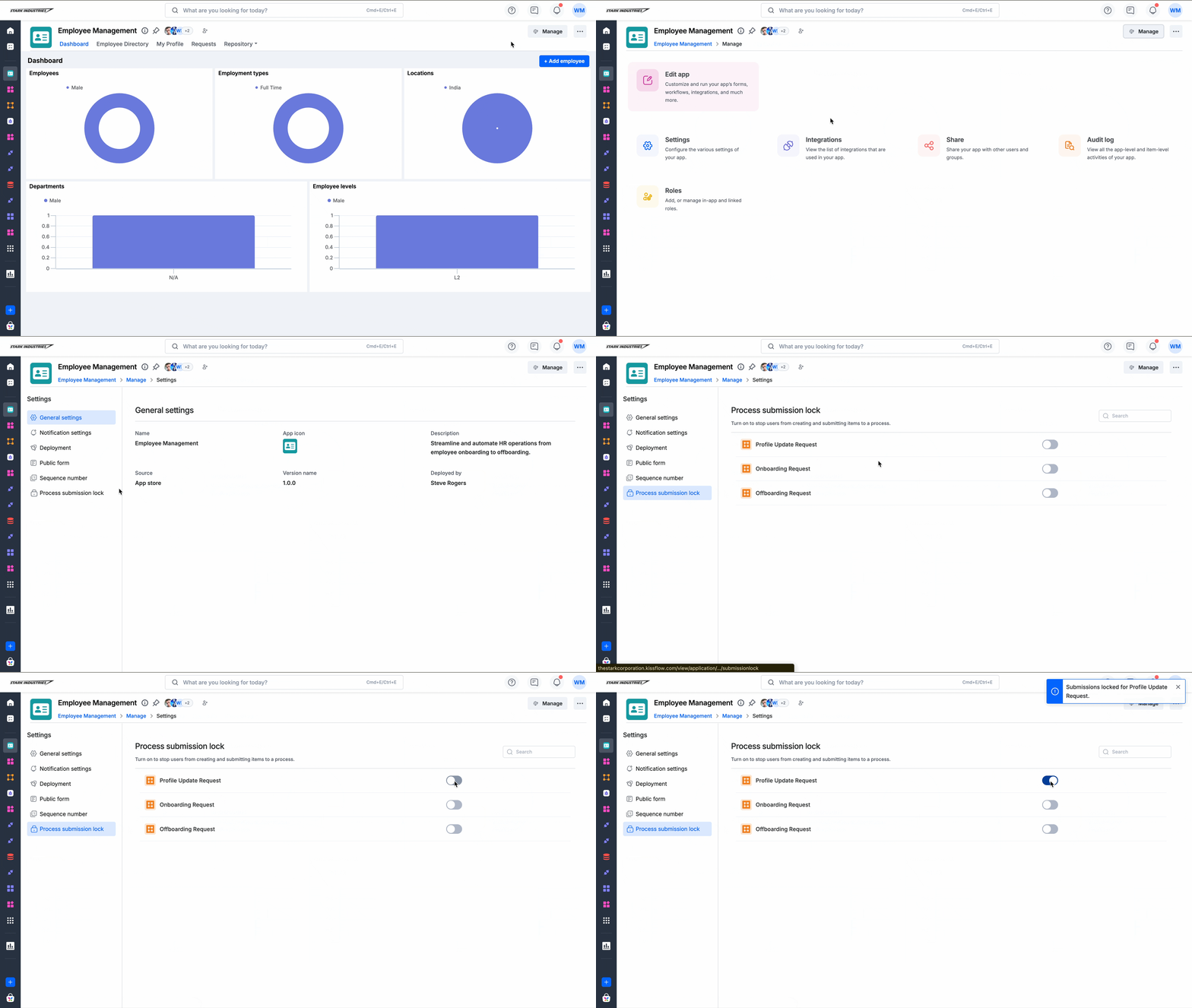
The changes take effect immediately. When a process is locked from under Manage > Settings , it reflects in the process' individual settings within the app builder, and vice versa. Both locations stay in sync at all times.
Locking a process from the app builder
Process submission lock can be configured from within the app builder for each individual processes. Go to the process in the app builder and open the process settings to turn off submissions.
Note: Changes made from within the app builder take effect only after the application is redeployed. Saving this setting alone will not restrict or restore submissions until a deployment is completed.
Environment-specific behavior
Process submission lock settings configured under Manage > Settings are scoped to the environment in which they are applied. The lock state is maintained independently across your Development, Staging, and Production environments.
App administrators must enable or disable the lock separately in each environment as needed. For example, a change made in the development environment, will not be reflected in Production until the same action is performed there.
For example, if a process is locked in the Production environment but remains unlocked in Development, redeploying the app from Development to Production will not override the lock. The process will remain locked in Production until an administrator explicitly removes it there.
Sharing an app
You can only share the app to users from the production environment. Go to the Manage page and click Share.
In this page, you can share the app with users in the development and production individually. When a user is added to the development environment for a particular app, they will be able to view and access it only from the dev environment.

Deploying apps to the target environment
If you are an app admin in the development environment, you will have the permission to deploy apps to production after developing it. To move an app to the target environment, simply click Deploy.
Learn more about app deployment.