
New: Take full control of your notification emails with custom SMTP server
We are excited to announce a powerful new addition to your Kissflow notification settings! You can now move beyond Kissflow's default email server and configure your custom SMTP server.
This highly requested feature gives you full control over your email delivery infrastructure, sender identity across environments, and user verification.
Why set up a custom SMTP server?
Previously, all notification emails were sent via the default Kissflow server. With this update, you can align email notifications with your organization's policies and branding.
Seamless user onboarding: When using your custom server, you have the option to skip email verification. While a verification email will still be sent, users are no longer required to click the link to receive notifications. Verified or not, the emails will flow!
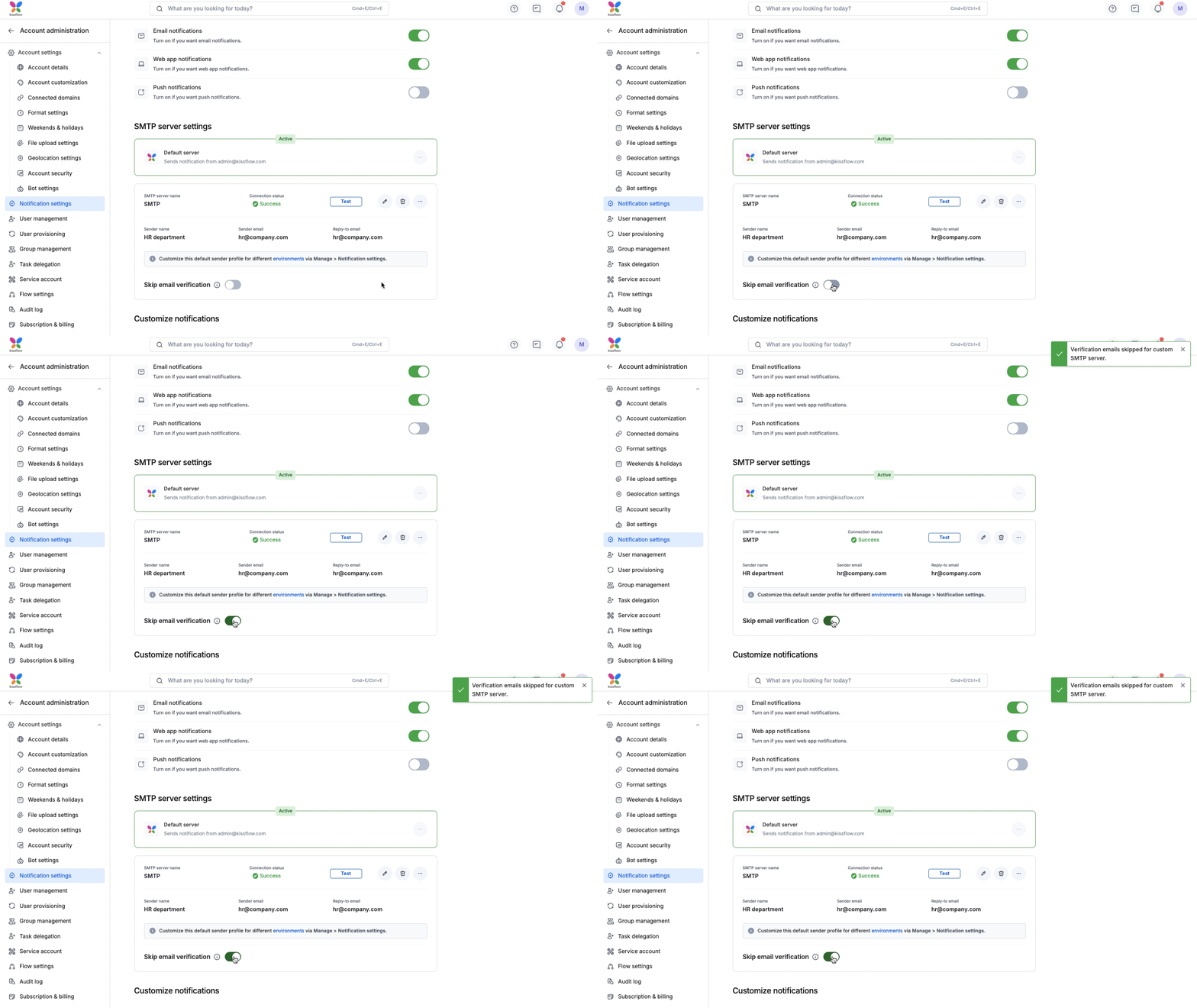
Complete sender control: Customize the Sender name, Sender email, and Reply-to email. Make sure your users recognize exactly who is contacting them.
Environment-specific profiles: You now have the flexibility to configure unique sender profiles for different app environments (Development, Test, and Production). This helps your team easily distinguish between a test notification and a live production alert, preventing confusion during the development lifecycle.
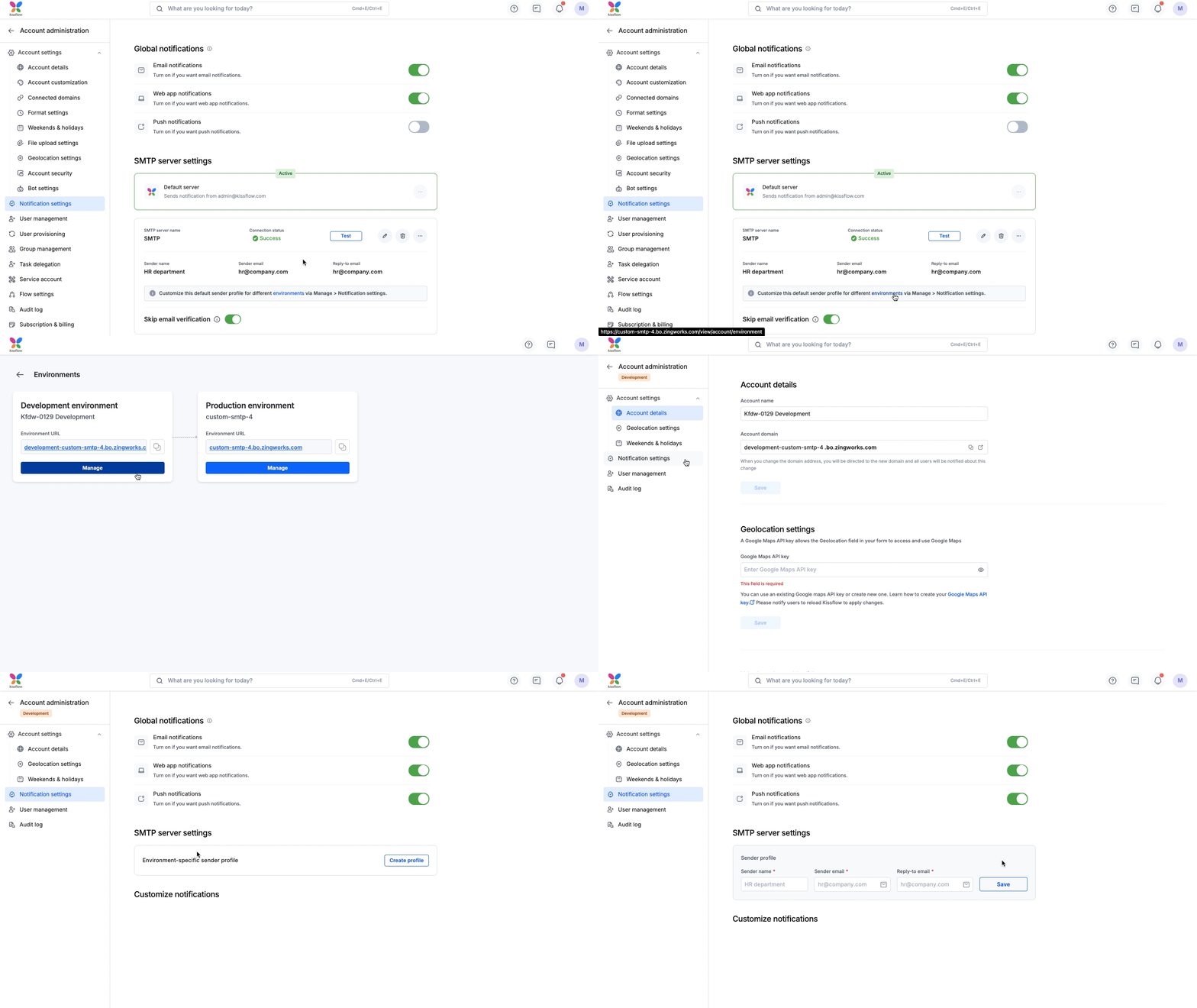
Reliability and monitoring: In the unlikely event of delivery issues, you can configure Server failure alerts to be sent directly to a specific email address, ensuring you never miss a beat.
How it works
We’ve designed this feature with flexibility and uptime in mind:
Test and activate: Configure and switch to your custom SMTP server after a successful connection test.
Switch anytime: Switch between your custom and default servers at any time.
Safe updates: Disable the server to edit or delete it, ensuring automatic fallback to the default server and no emails are missed.
Availability and support
This feature is available to Super Admins on the Enterprise plan. You can access these new settings immediately by navigating to: Account administration > Notification settings.
For more information, visit our help documentation. If you have any questions, comment below or reach out to our support team.
Content aside
-
7
Likes
- 7 mths agoLast active
- 7Replies
- 447Views
-
5
Following