
Understanding your backup output
Note: This service is available on request. Please contact our support team to enable it on your account.
Once your account backup finishes, you receive a set of JSON files and your original attachments, packaged into ZIP files (split and optionally encrypted based on your configuration). This article explains what is inside that package, how the data is organized, and how to read it.
If you haven't run a backup yet, start with Data backup overview and the storage-specific guides.
How the backup is packaged
Your backup mirrors the data categories you selected during configuration. After you unzip the package, you'll see a file for user and group data, a folder each for transactional data and audit logs, plus a flow index and a readme:
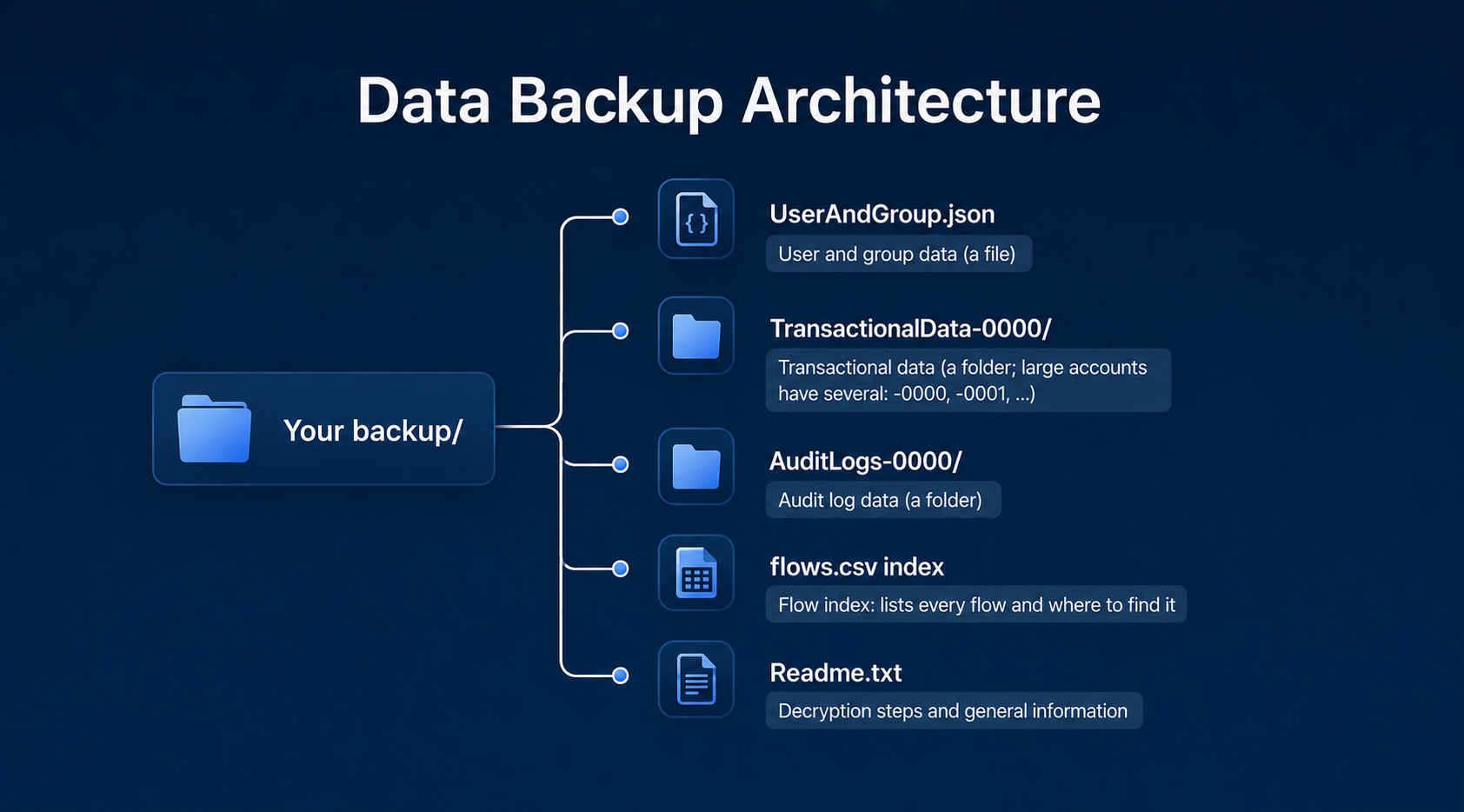
At a glance, here's what each part is for:
| Part | What it is | Best used for |
|---|---|---|
UserAndGroup.json |
Your master identity file: every user, external user, service account, role, and group in the account. | Mapping permissions and your directory structure; resolving "who did what." |
TransactionalData-0000/ |
The actual records from your flows, plus their comments and attachments. | Loading operational data into tools like Power BI, Tableau, or your own scripts. |
AuditLogs-0000/ |
A chronological log of account and flow activity over roughly the last year. | Compliance monitoring, forensic checks, and activity tracking. |
A few things to know up front:
- Everything is stored as JSON files (plain text), except attachments, which are kept as their original files (PNG, PDF, XLSX, and so on).
- Most JSON files are a single array of records. The audit logs are the one exception: they use JSON Lines (one object per line). We flag this again in the audit section, because it changes how you open those files.
- The
-0000suffix is a batch number. Large accounts split their transactional data into several batch folders (TransactionalData-0000,TransactionalData-0001, and so on). Most flows sit entirely in one batch, but a very large flow's data can spread across more than one. Use the flow index (below) to find a flow's main location; if a flow is large, also check the other batch folders for the sameFlow ID. User and group data is always a single file with no batch suffix. - The backup is a data export, not a restorable database. It is meant for reading, archiving, and analysis, not for importing back into Kissflow.
How to use your backup data
Because everything is open JSON, you can work with it in whatever tool you prefer. Some common uses:
- Audit and compliance: Read the audit logs to produce a record of account activity for a review period. Group related events using
BatchID. - Reporting and analysis: Load a flow's
<Flow ID>.jsoninto a spreadsheet, BI tool, or script to analyze your records outside Kissflow. - Archiving: Keep the package as a long-term, offline copy of your account data, independent of the platform.
- Reconnecting the pieces: Join records to people through the
_idinUserAndGroup.json, and records to attachments through therecord IDfolder names underAttachments.
Worked examples
These short walkthroughs show how the IDs tie the files together.
Who deleted a group? You spot a group marked deleted in UserAndGroup.json (for example, _id: "Gr5f_Tu24tkp", the Operations Department group). Look at the _modified_by block on that same entry. It names the actor, for example _id: "Us4YeHqN_4jb". Look that ID up elsewhere in UserAndGroup.json to confirm it's Steve Rogers, the admin who removed it.
Who's behind an audit log entry? An audit line's Object field is formatted id -- name (for example, Us7OHZJLfP2E -- Jane Doe). Take the ID before the --, look it up in UserAndGroup.json, and you get the full profile: their status, department, and type.
Who submitted a record? Open the record in the flow's <Flow ID>.json (not the _Users.json file, which only lists who had access). Read the record's _created_by object, take its _id, and look it up in UserAndGroup.json to reveal the full identity, including their UserType.
Things to keep in mind
- This export is for reading and archiving, not for importing back into Kissflow.
- If you encrypted your backup, you'll need the passphrase you set to decrypt the files (see Opening an encrypted backup above), so save it carefully. Keep the exact passphrase for each backup: if you edit your backup configuration later, the previous passphrase stops working, and any files already encrypted with it can no longer be opened.
- Backup files delivered by email link should be downloaded within seven days.
- Field keys may not match app labels, and there is no schema file. When a key is unclear, check the live app.
- Audit logs cover roughly the last year only.
If you have any questions about your backup data, reach out to the support team.
Opening an encrypted backup
If you set a passphrase when configuring your backup, your files arrive as encrypted ZIP files (.aes256cbc), one per module, named like UsersAndGroups-0000.aes256cbc. You need to decrypt each one before you can read it. This requires OpenSSL installed on your machine and the exact passphrase you set.
Run this command for each file, substituting your own file names and passphrase:
openssl enc -aes-256-cbc -d -salt -iter 10 -in "<encrypted-file>" -out "<output-file>.zip" -k "<passphrase>"For example:
openssl enc -aes-256-cbc -d -salt -iter 10 -in "UsersAndGroups-0000.aes256cbc" -out "UsersAndGroups-0000.zip" -k "SamplePhrase"Then unzip the resulting .zip files to get the folders and JSON described below. Your backup also includes a Readme.txt with these same steps.
If you did not set a passphrase, your files arrive as plain ZIPs and you can skip this step.
User and group data
File: UserAndGroup.json
A single JSON array listing every identity in your account: human users, external users, service accounts, roles, and groups. Each entry is one object, and the Kind field tells you what type it is.
Identity types (the Kind field)
| Kind | What it is | Notes |
|---|---|---|
User |
An internal human team member. | |
ExternalUser |
An outside client or vendor who signs in to your external portals. | |
ServiceAccount |
An automated integration account (API access). | IDs are prefixed SA-. |
Group / ExternalGroup |
A set of users used to route and share work (for example, "Marketing"). | |
Role / AppRole |
A permission level. AppRole is scoped to a specific app. |
AppRole IDs are prefixed Ro. |
Useful fields on a user
| Field | Meaning |
|---|---|
_id |
Internal ID for the identity (for example, Us43NlCnXQMV). |
Kind |
The identity type, as above. |
Name |
Display name. |
Email / EmailVerified |
The user's email address and whether it has been verified. |
Status |
Account status: Active, InActive, Invited, Requested Access, or Deleted. |
UserType |
Privilege level, such as Super Admin, User Admin, Billing Admin, or User. |
UserDepartment |
The user's department, where set (for example, HR, Marketing). |
_created_at / _created_by |
When and by whom the record was created. |
_modified_at / _modified_by |
Last change details. |
_is_deleted |
true if the entry has been removed. Deleted entries are still included for completeness. |
Descendants / _descendants |
For groups, the members and nested groups. |
Tip: The
_idvalues here are the key to everything else. The same IDs appear throughout your transactional data and audit logs wherever a person or group is referenced, so this file is your directory for resolving "who did what."
Finding a flow: the Flow index
Your backup includes a flow index, a CSV file (for example, flows.csv) that lists every flow in your account. It is the fastest way to locate a specific flow's data, especially when your transactional data spans several batch folders.
Each row has five columns:
| Column | Meaning |
|---|---|
S. No |
Row number. |
Flow name |
The flow's display name, as you see it in Kissflow. |
Flow ID |
The internal ID, which is also the folder name for that flow. |
Flow type |
Process, Board, Dataset, Form, or Project. This tells you the type of folder to open. |
File location |
The batch folder the flow lives in (for example, TransactionalData/TransactionalData-0001). |
To find a flow's data, look up its name in the index, then open <File location>/<Flow type>/<Flow ID>/. For example, a Process named "Leave Management" with Flow ID Leave_Management located in TransactionalData-0001 lives at TransactionalData-0001/Process/Leave_Management/.
Tip: Flow names can contain commas, so open the index in a spreadsheet app rather than splitting on commas if you process it with a script.
Note:
File locationis a flow's primary batch, not a guarantee. A very large flow's data can be split across more than one batch folder, and such a flow may appear more than once in the index. If you don't find all of a flow's records in the listed location, check the otherTransactionalData-NNNNfolders for the sameFlow ID.
Transactional data
Folder: TransactionalData-0000/ (and -0001, -0002, and so on for large accounts)
This is the largest part of your backup. It holds the actual records (items) from your flows, along with their comments and attachments. The data is organized first by flow type, then by flow. The five flow types are Process, Board, Dataset, Form, and Project.
About apps: In Kissflow, an app is a bundle that groups several flows together. The backup does not preserve that grouping: an app's process, board, dataset, and dataform are each stored in their own flow-type folder, alongside standalone flows. There is no
Appsfolder. To gather everything that belongs to one app, look up its flows by name in the flow index.
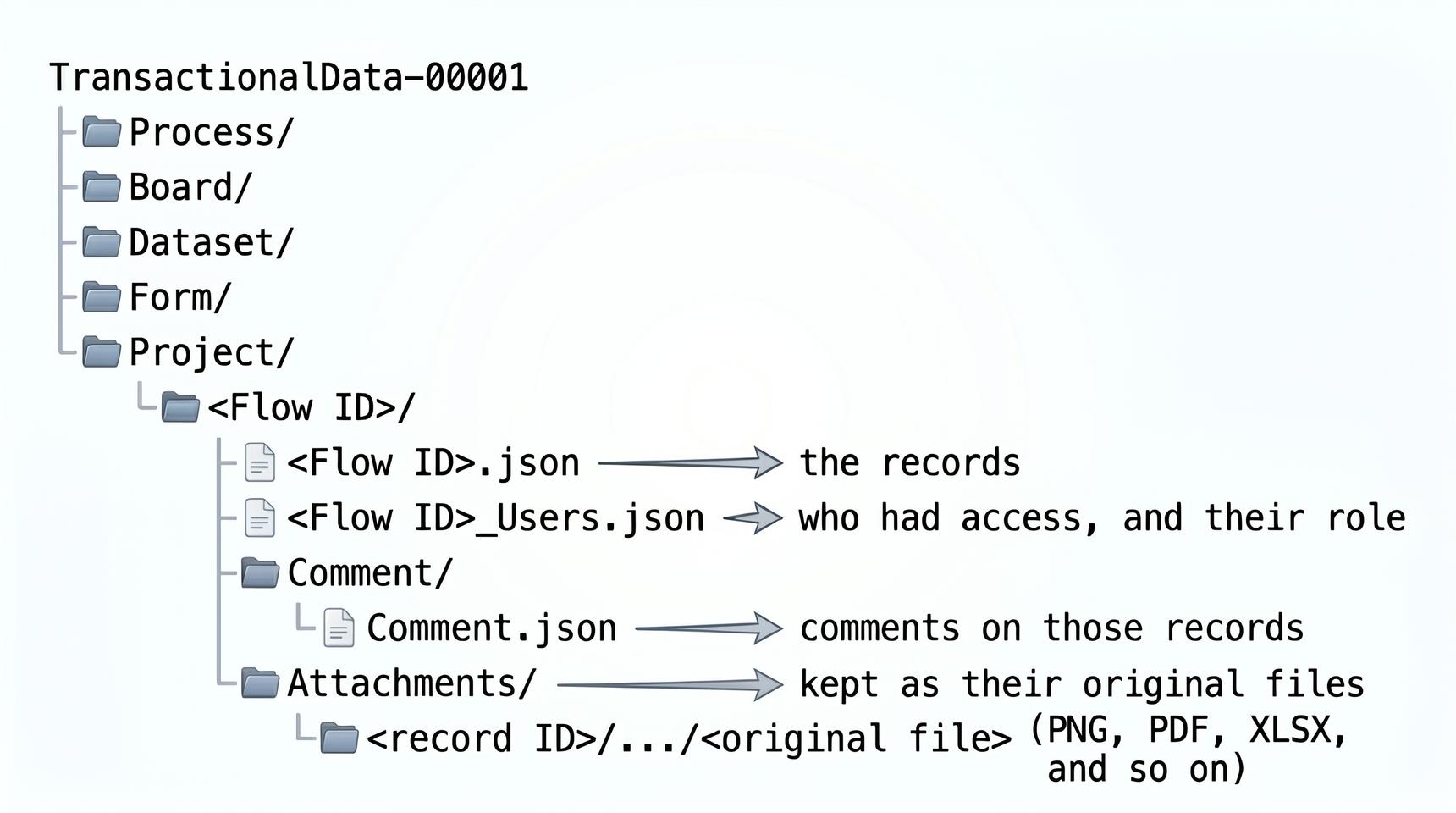
Each flow folder is named by its Flow ID (the value in the flow index) and is self-contained. Open <Flow ID>.json to read the records, <Flow ID>_Users.json to see who had access, and the Comment and Attachments subfolders for anything attached to those records.
Important:
<Flow ID>_Users.jsonlists the people who had access to the flow and their roles. It is not the list of who submitted records. To find who created or filled in a record, look at the_created_byfield on the record itself, inside<Flow ID>.json.
What's in the records file
<Flow ID>.json is an array of records. Every record shares a common set of system fields, then adds the fields specific to that flow.
System fields you'll see on almost every record:
| Field | Meaning |
|---|---|
_id |
Unique record ID. |
_flow_name |
The app the record belongs to. |
_created_at / _created_by |
Creation details, including the submitter. |
_modified_at / _modified_by |
Last modification details. |
Name |
The record's display name. |
_doc_version |
Internal version number tracking how many times the item changed. |
_is_deleted |
Appears (and is true) only on records that were deleted but kept in the backup for compliance. Most records won't have this field. |
The remaining fields hold your data and differ by module. Here's what to expect from each.
Process records
Process records carry the full workflow state, not just the form values. Alongside your form fields you'll find:
ProcessInstanceandActivityInstance: nested objects describing the workflow run, current activity, and history._status: the item status (for example,Completed)._stage,_current_step,_current_assigned_to,_last_completed_step: where the item is in the flow and who holds it._request_number: the human-readable request number._submitted_at,_completed_at: timeline stamps.
Board records
Board (case) records describe a card and its position on the board:
CaseWorkflowInstance: the case's workflow object._status_id/_status_name: the column the card sits in._priority_name,_priority_sequence: priority.ItemType,_category,_is_draft: classification and draft state.
Dataset records
Datasets are the simplest. Each record is a flat row of your fields plus system fields:
_order: the row's position in the dataset.Nameand your own field columns.
There is no workflow data, because datasets store reference data and don't run through a workflow.
Form records
Form records are also flat rows of field values. You may notice field keys with a numeric suffix (for example, Status_1, Use_case_1), which is how repeating form fields are stored. A _visited field indicates whether the form was opened.
Project records (deprecated)
Project records resemble Process records but use project-specific workflow objects:
ProjectFlowInstanceandStepInstance: the project workflow and its steps._current_step_name,_current_step_id,_entered_at: current position._counter,_item_id: identifiers.
Comments
File: <Flow ID>/Comment/Comment.json
Comments made on records are stored here, separate from the records themselves. Each comment includes:
Content: the comment as a structured rich-text tree, with aRawContentfield giving the plain-text version.AtMentionand mentions insideContent: people tagged in the comment, with their_idandName.Reactions,Status,AssignedTo,_created_by,_created_at: reactions, open/closed state, assignment, and authorship.
Comment.json is organized by record: each top-level object's _id matches the _id of the record the comments belong to, so that's how you link a comment thread back to its record. Within a comment, EntityType and EntityId point to where on the item the comment is anchored (for example, a specific activity or step), not to the record itself.
Attachments
Folder: <Flow ID>/Attachments/
Attachments are kept as their original files with their original filenames. They are nested inside folders named by internal IDs, so each file can be traced back to the record it came from:
Attachments/
└── <record ID>/
    └── <instance ID>/
        └── <attachment ID>/
            └── original_file.png
The top folder name is the record _id. To find which record an attachment belongs to, match that folder name against the _id in <Flow ID>.json. The inner folders are internal references Kissflow uses to keep each file unique; you don't need them to locate the record.
Audit log data
Folder: AuditLogs-0000/
Audit logs are split across many numbered files (AuditLog_000000000000.json, AuditLog_000000000001.json, and so on). These files use JSON Lines format: one JSON object per line, not a single array. Read them line by line rather than parsing the whole file as one object.
Each line is one event:
| Field | Meaning |
|---|---|
AuditID |
Unique event ID. |
Timestamp |
When the event happened (UTC). |
ActedBy |
Who performed the action. System-generated actions show as Flobot -- User, where Flobot is Kissflow's internal system account. |
Event |
The event type (for example, AC_DatasetBatchUpdate, AC_BackupStatusChanged). |
Eventcategory |
The broader category the event belongs to. |
Object |
The thing acted on, as id -- name. |
IP, Platform |
Where the action came from, when available. |
BatchID |
Groups related events from the same operation. |
EventData |
Event-specific details. |
Note: Audit log backups include roughly the last year of activity at both the account and flow level. Older events are not part of the export.
Reading field names and values
This is the most important thing to understand before you start working with your data.
The keys in your records are internal field IDs, not always the labels you see in the app. Most line up with the label (for example, Advance_Amount), but some won't:
- A field you never renamed may appear as
Untitled_FieldorUntitled_field. - A renamed field keeps its original internal key. If you renamed "Description" after creating it, the data might still use a key like
_1643035136_Description. - Repeating fields carry numeric suffixes (
Status_1).
The backup does not include a schema or data dictionary. There is no file that maps each field key to its current label, type, or form section. So if a key isn't self-explanatory, the most reliable way to identify it is to compare the record against the same item in the live app.
It adds a little friction, so it's worth knowing before the keys catch you by surprise.
Common value formats
A couple of value shapes repeat everywhere, so they're worth learning once.
Dates are objects, not plain strings:
"_created_at": {
  "v": { "$date": "2022-01-11T07:09:09.857Z" },
  "dv": "2022-01-11T07:09:09Z",
  "tz": "GMT",
  "td": ""
}
Use dv for a clean display value, or the $date inside v when you need exact precision. They aren't identical: v.$date keeps milliseconds (...09.857Z) while dv drops them (...09Z), so use v.$date for exact-match or deduplication work. Both are in UTC; the tz and td fields describe the original timezone and can usually be ignored. If you're parsing in Power BI or SQL, point your function at the inner $date string.
People (users and groups) appear as objects:
"_created_by": { "_id": "UsJ35GmWEn3zP", "Name": "Tony Stark", "Kind": "User" }The _id matches an entry in UserAndGroup.json, so you can always resolve a reference back to a full user or group record.
One caution about IDs: an _id only resolves within its own file. User and group IDs live in UserAndGroup.json; record IDs live in each <Flow ID>.json. Don't expect a record ID to appear in the user file, or vice versa.