
Watching a process item
Watchers can stay informed about a process item without participating in its workflow. As an item initiator, if you need someone to have visibility into an item's progress but don't need to approve, reject, or take action on it, you can add them as watchers.
Use case
An employee submits a purchase request and wants their manager to stay informed about its progress and final outcome, but the manager doesn't need to participate in the approval workflow.
By adding the manager as a watcher, they can track the item's progress, receive outcome notifications, and participate in comments without being assigned any workflow tasks.
Adding and removing watchers
Before users can add watchers to an item, process admins must enable initiators to watch items under Security settings.
Only users who are already part of the process in any role can be added as watchers.
The following users can add or remove watchers for an item:
Item initiator (add and remove)
Watcher (only remove themselves)
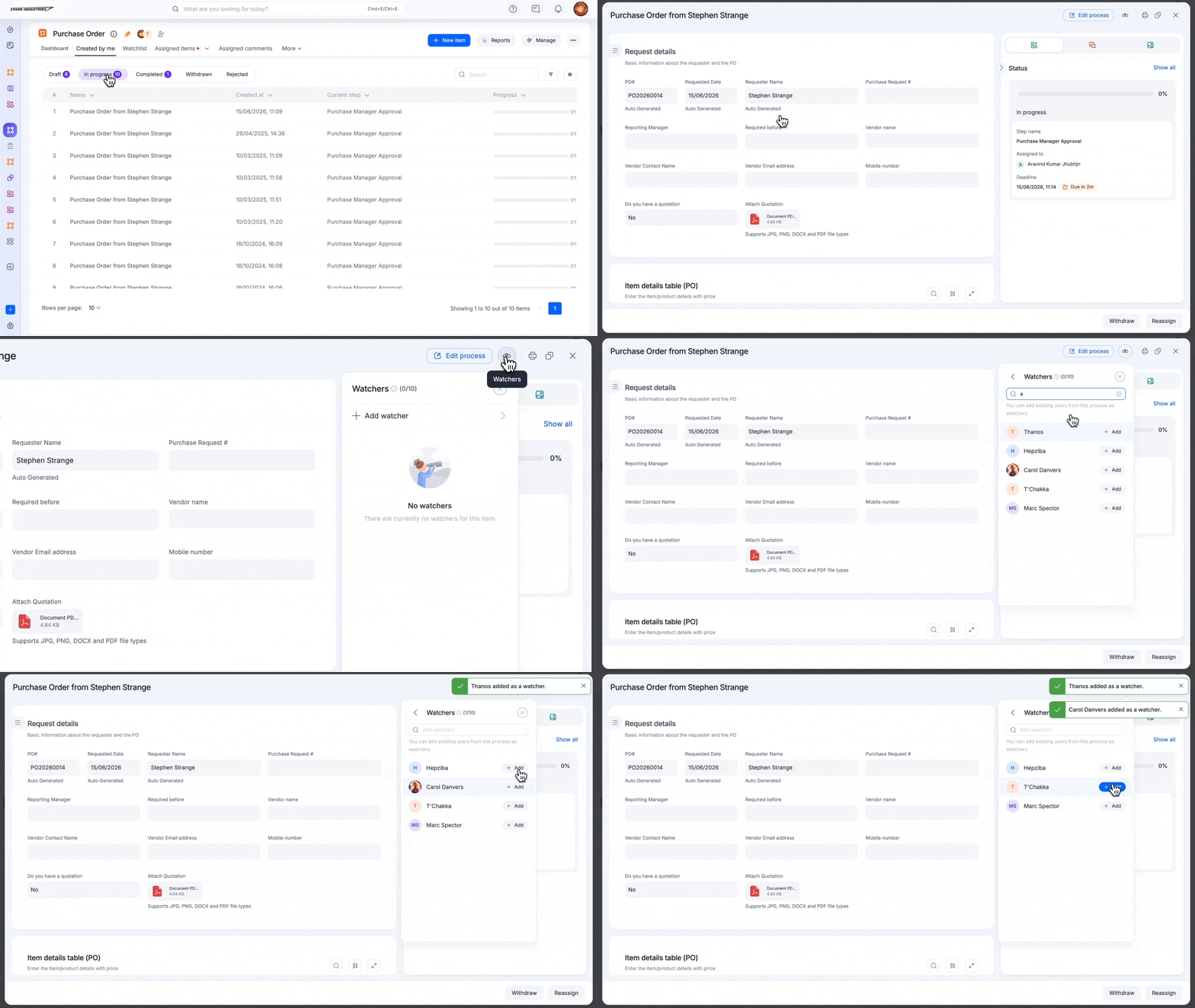
Adding a watcher
As an item initiator,
Open the process item.
Click the Watchers (
 ) button on the item form.
Search and select a process user.
Click Add.
Note:
A maximum of 10 watchers can be added to an item.
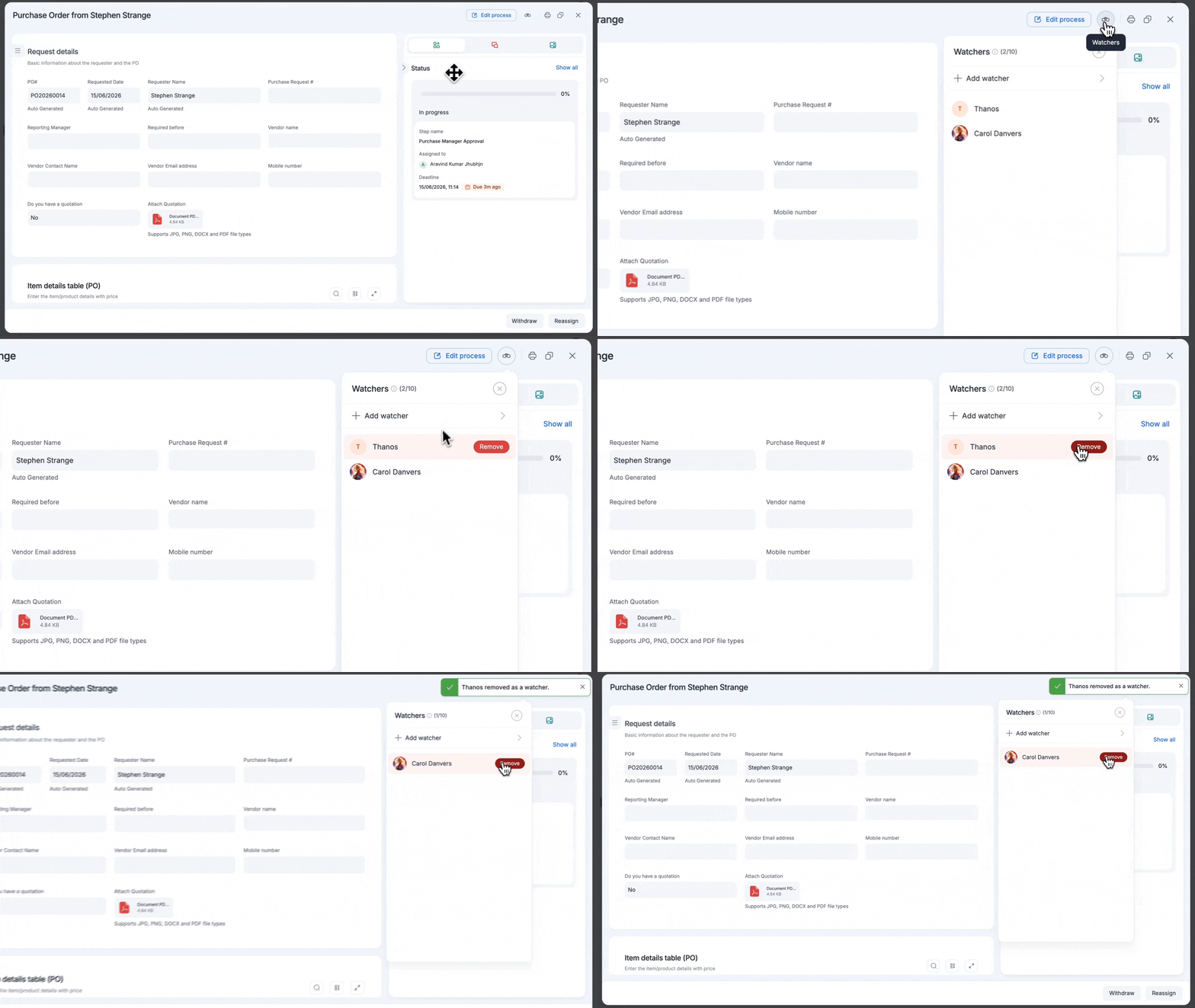
Removing a watcher
As an item initiator,
Open the process item.
Click the Watchers (
) button.Hover over the watcher’s name.
Click Remove.
If you are already a watcher, you can stop watching the item at any time. Open the process item and click the Stop watching button.
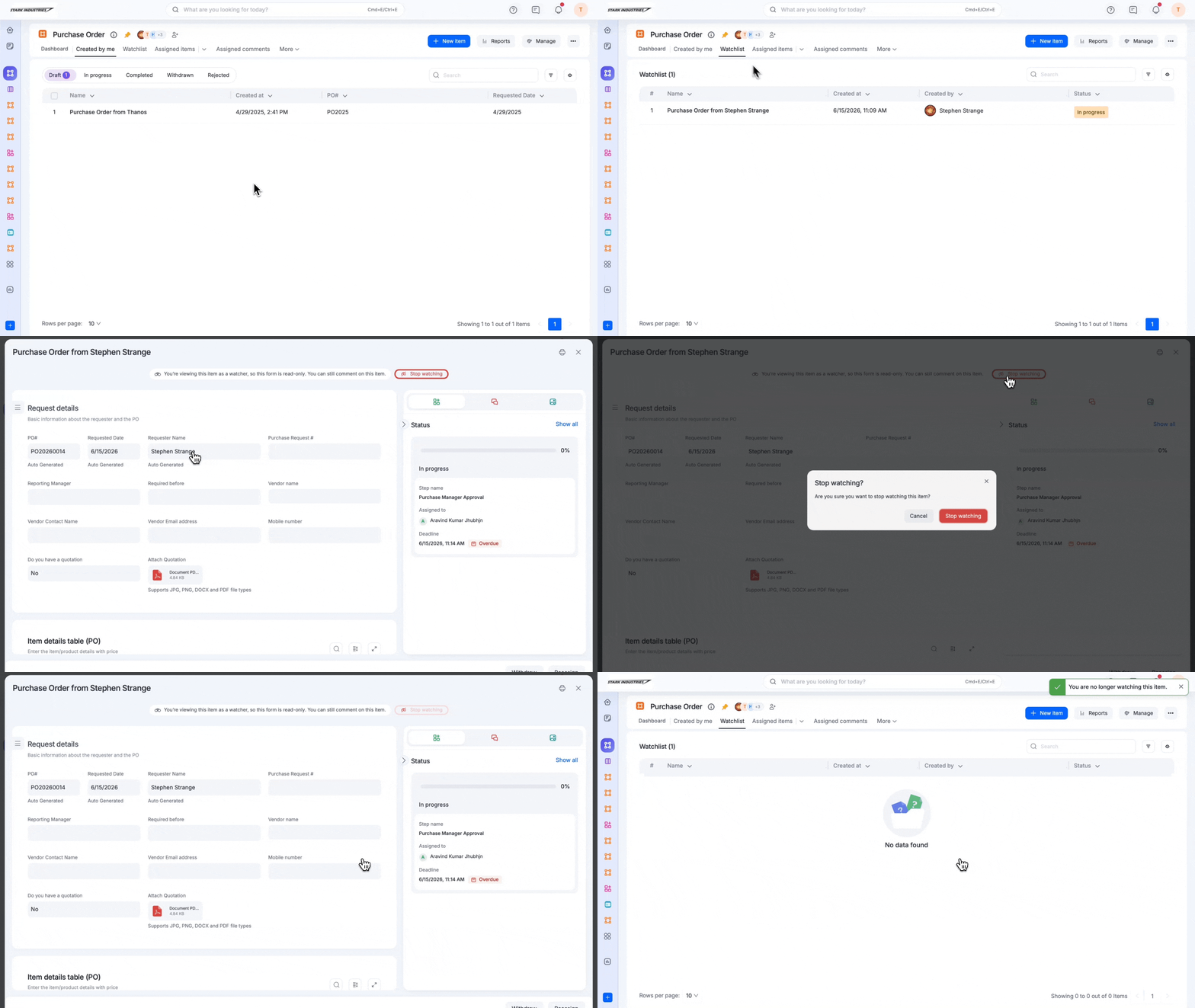
You will be removed from the watcher's list and will no longer receive notifications for that item.
What can watchers do?
Watchers can:
View fields in read-only mode
Track workflow progress
View item history and status
View and add comments
Mention item participants in comments
Watchers cannot:
Edit the form
Approve or reject items
Reassign tasks
Perform workflow actions
Mention users who are not participants in an item
Notifications for watchers
Watchers receive notifications when:
They are added as a watcher
They are removed as a watcher
The item completes its lifecycle (completed, rejected, and withdrawn)
They are mentioned in a comment
Someone reacts and replies to a watcher’s comment
Watchers do not receive notifications for assignments or intermediate workflow events.
Viewing watched items
As a watcher, you can access items you are watching from:
The Watchlist tab within the process
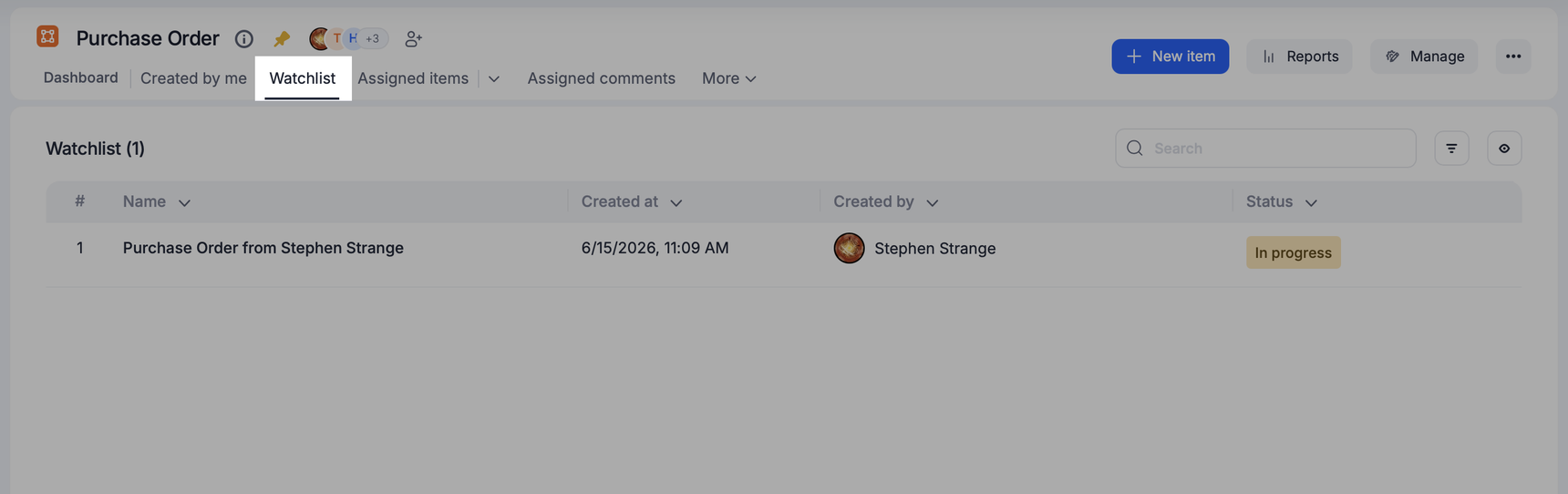
The Watchlist tab in My items
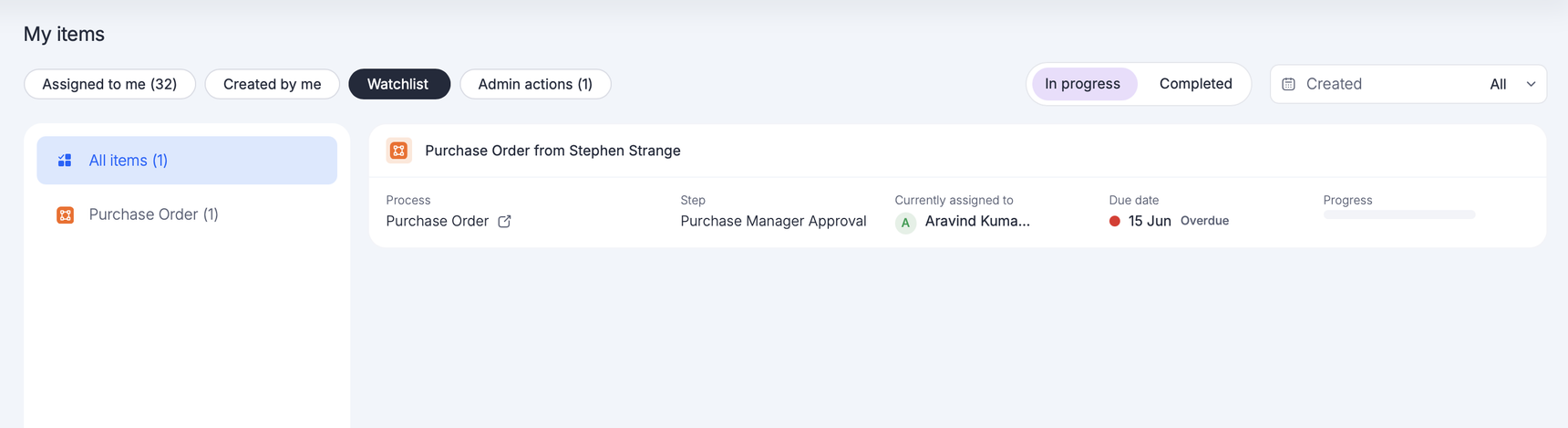
These views help you track items across processes without needing to participate in their workflow.
Limitations
Watchers cannot be added to draft items.
Restarted items do not retain their previous watchers.
Users removed from the process are automatically removed as watchers.