
Files panel
The Files panel acts as a centralized hub for all attachments within a form and its associated workflows. Instead of scrolling through long forms to find receipts, invoices, or images, you can access them all from a single sidebar.
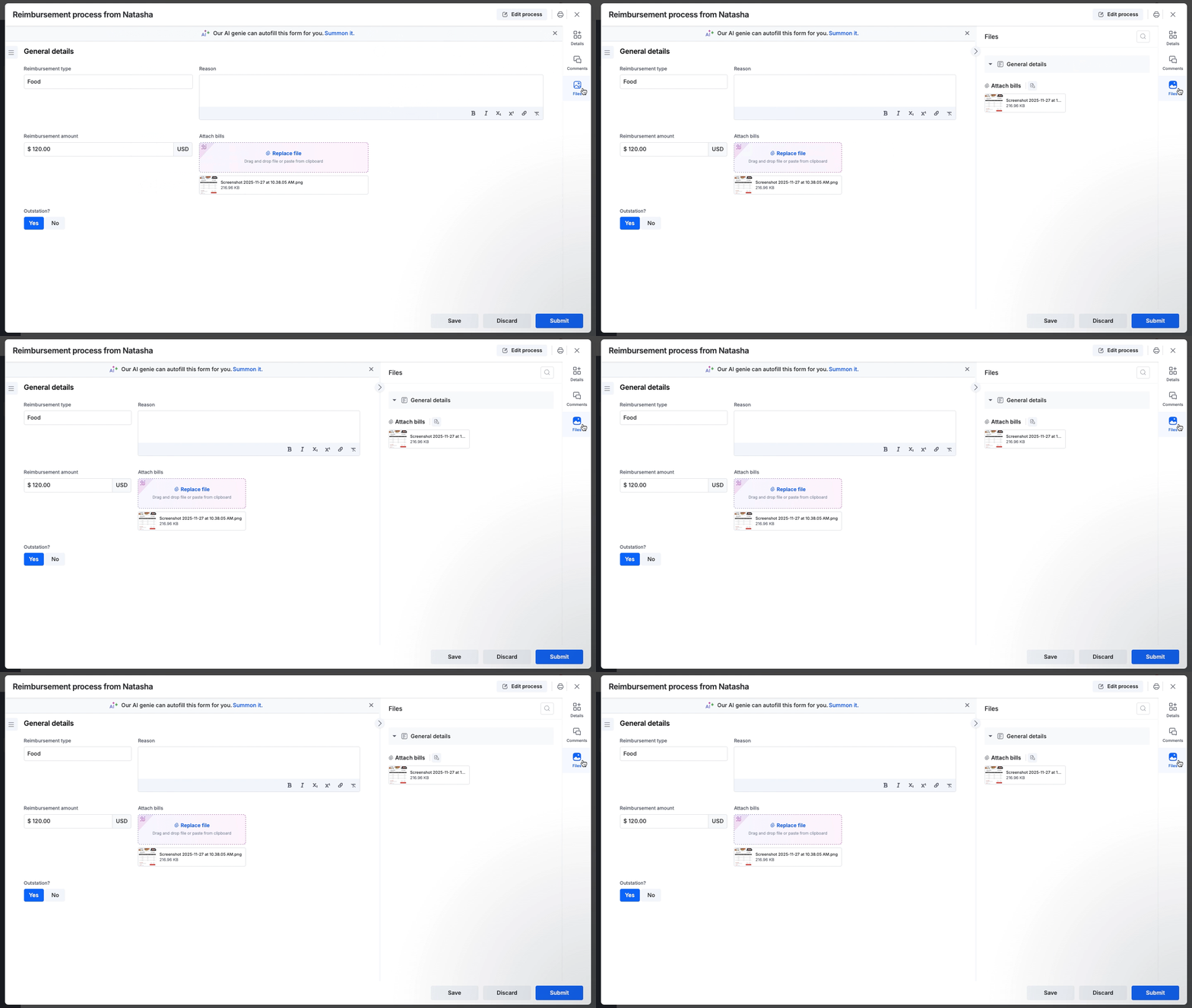
To open the panel, look for the right-hand sidebar inside any Process or Board item.
Click Files on the right sidebar.
The panel will slide out, displaying all attachments grouped by their respective sections.
Note:
The files panel is available within the Process and Board workflow, regardless of an item's status.
Previewing attachments
You can review attachments without leaving the current page or downloading files.
Click directly on any file name (for example, Screenshot) within the list.
This opens the built-in viewer overlay.
From here, you can download, print, open the attachment in a new tab, zoom in or out, rotate, and cycle through multiple attachments using the navigation arrows.

Locating a file in the form
If you need to see the context of an attachment (for example, checking which specific expense row a receipt belongs to):
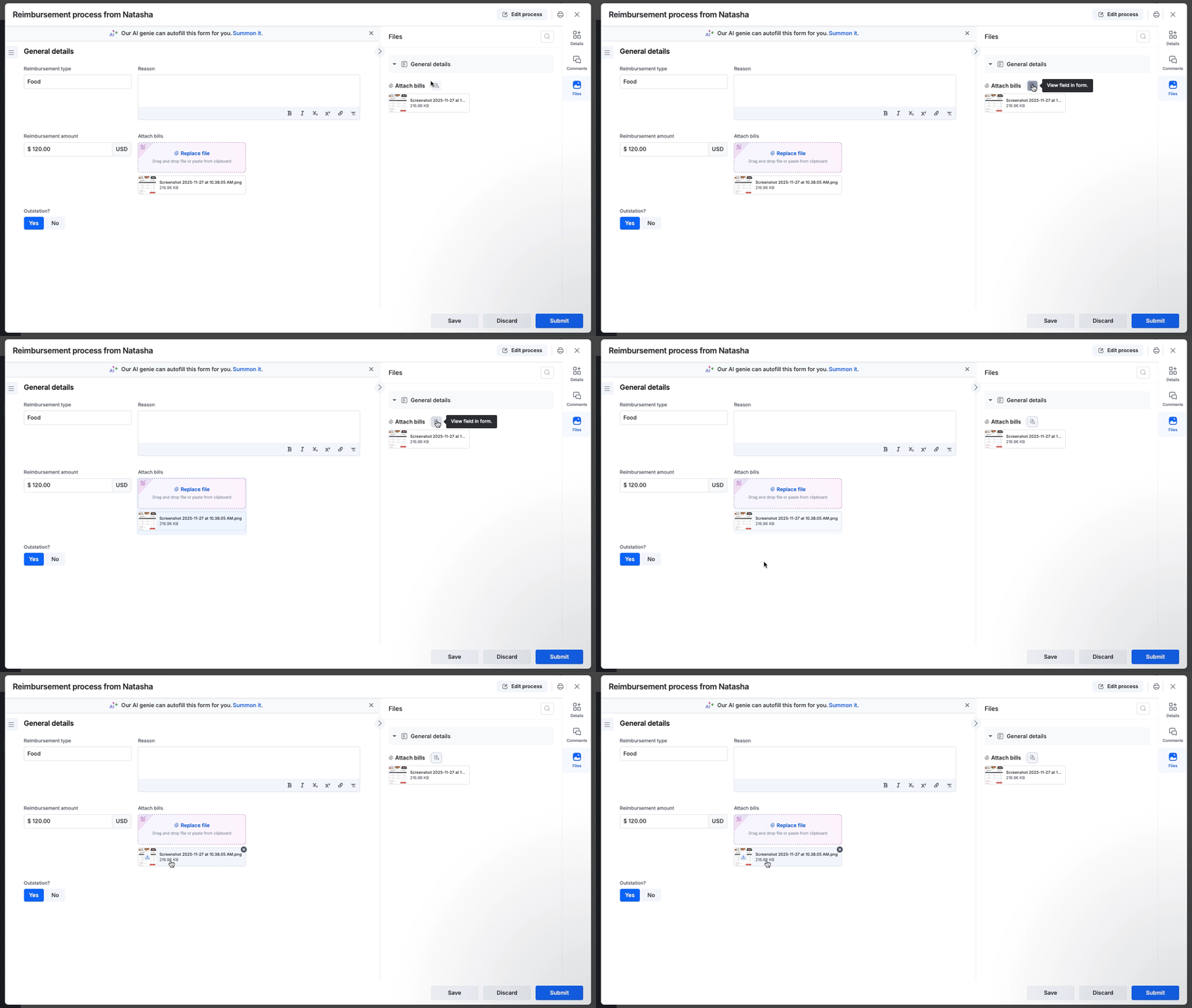
Hover over the file in the Files panel.
Click the View field in form icon (

) next to the file name.
The main form on the left will automatically scroll and highlight the exact field where that file is attached.
Searching for a specific attachment
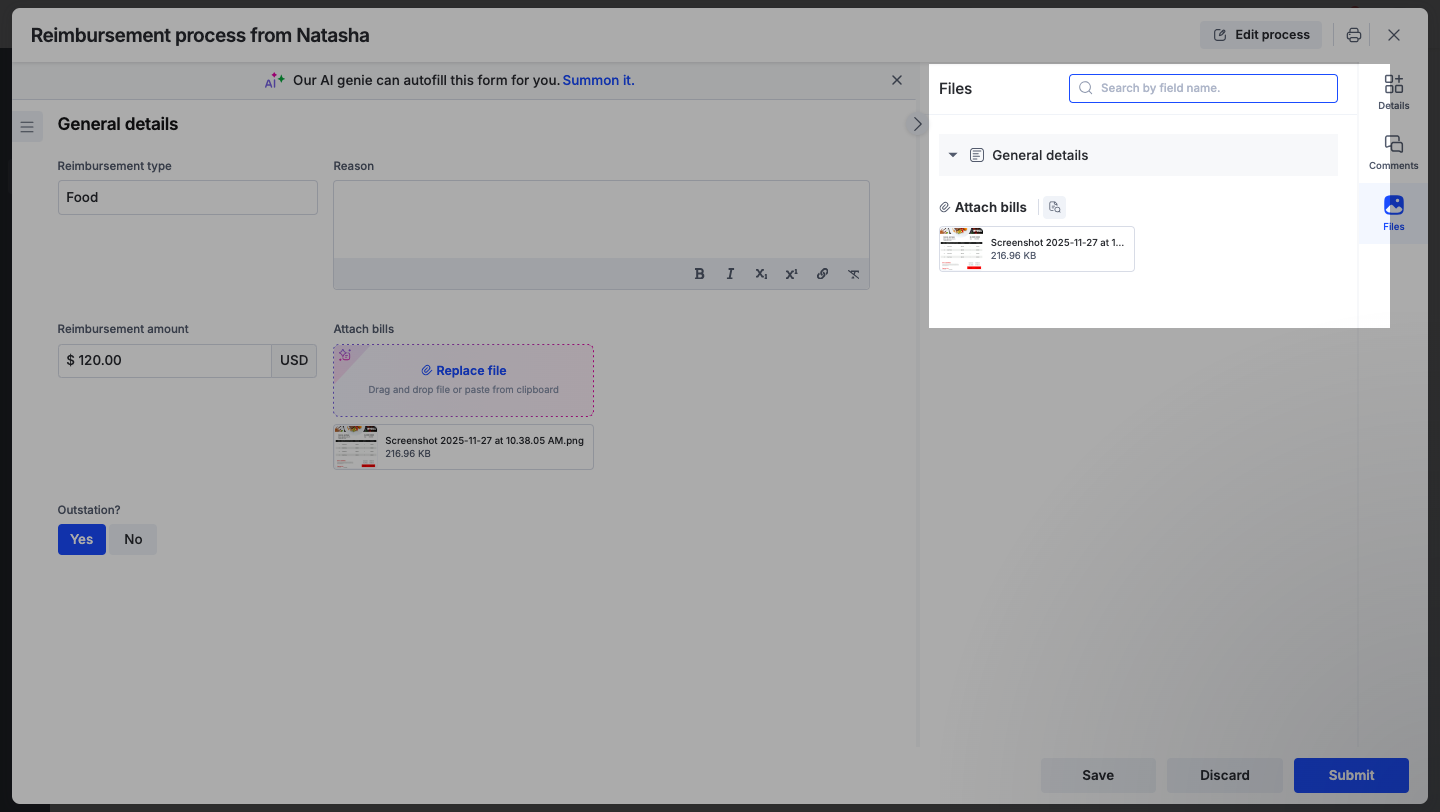
For forms with multiple attachments, use the search bar to quickly find what you need.
Search by field name, and the list will instantly filter to show only relevant attachments.
Note:
The files panel respects your workflow security settings. If a field is hidden at your specific step in the workflow, any files attached to that field will also be hidden in the Files panel.