
MCP access control
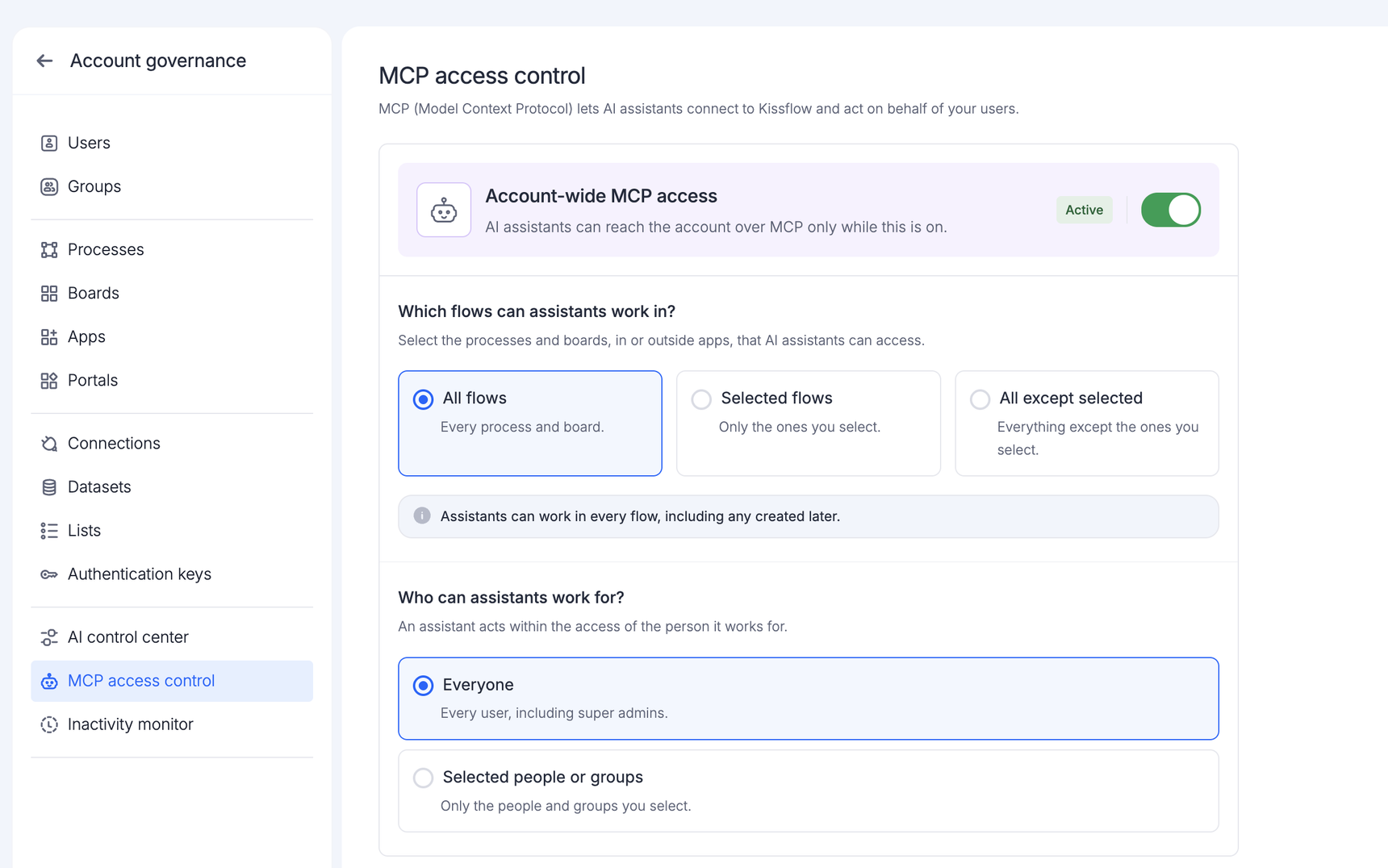
MCP (Model Context Protocol) lets AI assistants connect to Kissflow and act on behalf of your users. An assistant connects for a person and acts within that person's permissions.
To open MCP access control, click your profile picture > Account governance > MCP access control.
Note:
Only a Super Admin or an IAM Admin can open and change these settings.
MCP access starts fully open. Once it is enabled for your account, assistants can work in every flow, for everyone, until you change these settings.
Turning account-wide MCP access on and off
The Account-wide MCP access switch controls whether assistants can reach your account.
Turning it off stops every connected assistant immediately, for everyone in the account. Your flow and people selections are kept, so turning it back on restores them.
Caution:
Turning this off does not disconnect anything under My settings > Security settings > Assistants and apps. Existing connections remain listed, and they start working again as soon as you turn access back on.
Which flows assistants can work in?
This selection controls what an assistant can open and act in:
- All flows
- Selected flows
- All except selected
My tasks, My items, search, the watchlist and notifications still show items from every flow the person can see. The selection is checked when the assistant opens an item or acts on one.
Note:
Under Selected flows, a flow created later in the account is not included until you add it. Under All except selected, a flow created later is available to assistants unless you exclude it.
Who can assistants work for?
This selection controls who assistants can work for.
Everyone: Includes Super admins and IAM admins. An assistant working for an admin acts with that admin's permissions. Under Everyone, an assistant can work for a portal user. Portal users have no page on which to see or end a connection, so only the person who set it up can disconnect it, from the assistant.
Selected people or groups: Only the people and groups you select.
Seeing what an assistant did
In the audit log, an assistant's actions are recorded under the person it worked for: the assistant appears under Acted by, below the person's name. To see only what was done through an assistant, add the Acted through filter.
Note:
These records name any connected application, not only AI assistants. An assistant is one kind.
What this page does not cover
This page controls the MCP connection only. Anyone who can create an access key under My settings > API authentication can still reach Kissflow through the API with their own access.
Learn more about connecting AI assistants.