
Inactivity monitoring
Inactivity monitor gives Super admins and IAM admins a single place to review resources that have gone quiet across your Kissflow account. Instead of checking each module separately, you get one consolidated list of processes, boards, apps, datasets, lists, and more that show little or no recent activity, along with why each one is flagged. These insights help you spot cleanup and optimization opportunities, retire what's no longer needed, and keep your account free of clutter.
To open it, click your profile at the top right corner and click Account governance > Inactivity monitor on the left navigation.
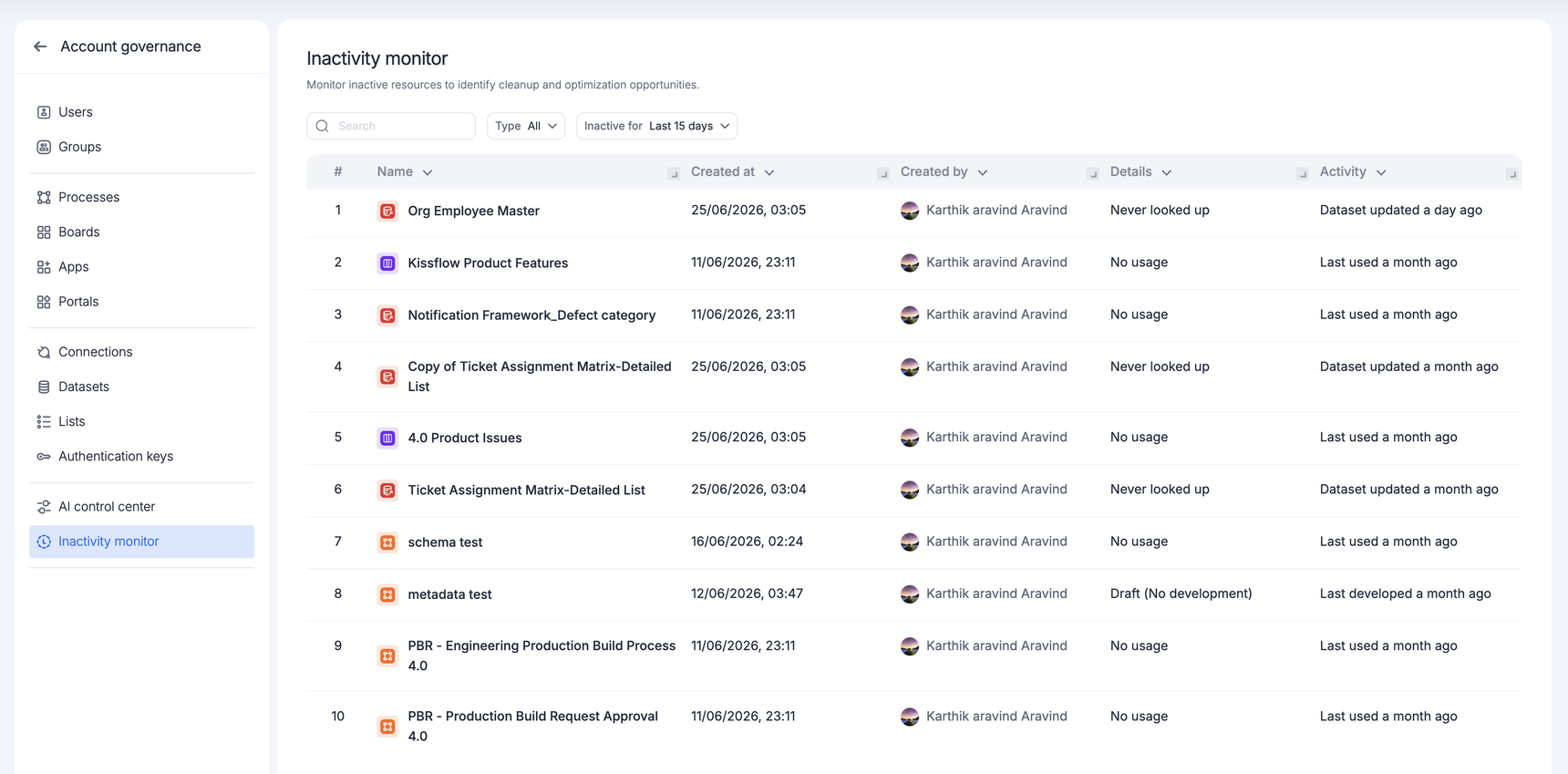
Reviewing inactive resources
The Inactivity monitor lists every resource flagged as inactive during the selected time range. Each row gives you the context you need to decide what to do next:
Name - The name of the resource, with an icon indicating its type (process, board, app, dataset, list, and so on).
Created at - The date and time the resource was created.
Created by - The user who created the resource, so you know who to reach out to before making changes.
Details - The reason the resource is flagged, such as No usage, Never looked up, or Draft (No development).
Activity - When the resource was last active, for example, Last used a month ago, or Dataset updated a month ago.
Filtering and searching
Use the controls at the top of the page to narrow down the list:
Search - Look up a specific resource by name.
Type - Filter by resource type to focus on a single module (for example, only processes or only datasets). Choose All to see everything.
Inactive for - Set the inactivity window (for example, the last 15 days). Only resources with no activity for the selected period are shown.
Combine these filters to answer targeted questions, such as which datasets have had no activity in the last 30 days or have never been looked up.
Understanding the flags
The Details column explains why each resource appears in the list. Common reasons include:
No usage - The resource hasn't been used within the selected time range.
Never looked up - The dataset/list was never referenced by another flow or app.
Draft (No development) - The resource was created as a draft but was not developed further or published in the selected time period.
Turned off (No development) - The integration is currently disabled and remains unconfigured in the selected time period, serving no operational purpose in your account.
Reviewing these details alongside the Activity column helps distinguish between resources that were previously active and those that have never been utilized.