Portal governance
Portal governance offers Super admins and IAM admins, a lens into how portals are used across their Kissflow account. It highlights trends in portal activity, helps spot idle or high-usage portals, and surfaces potential risks like unauthorized access or external data exposure. These insights are essential for making informed decisions around portal lifecycle management and data governance.
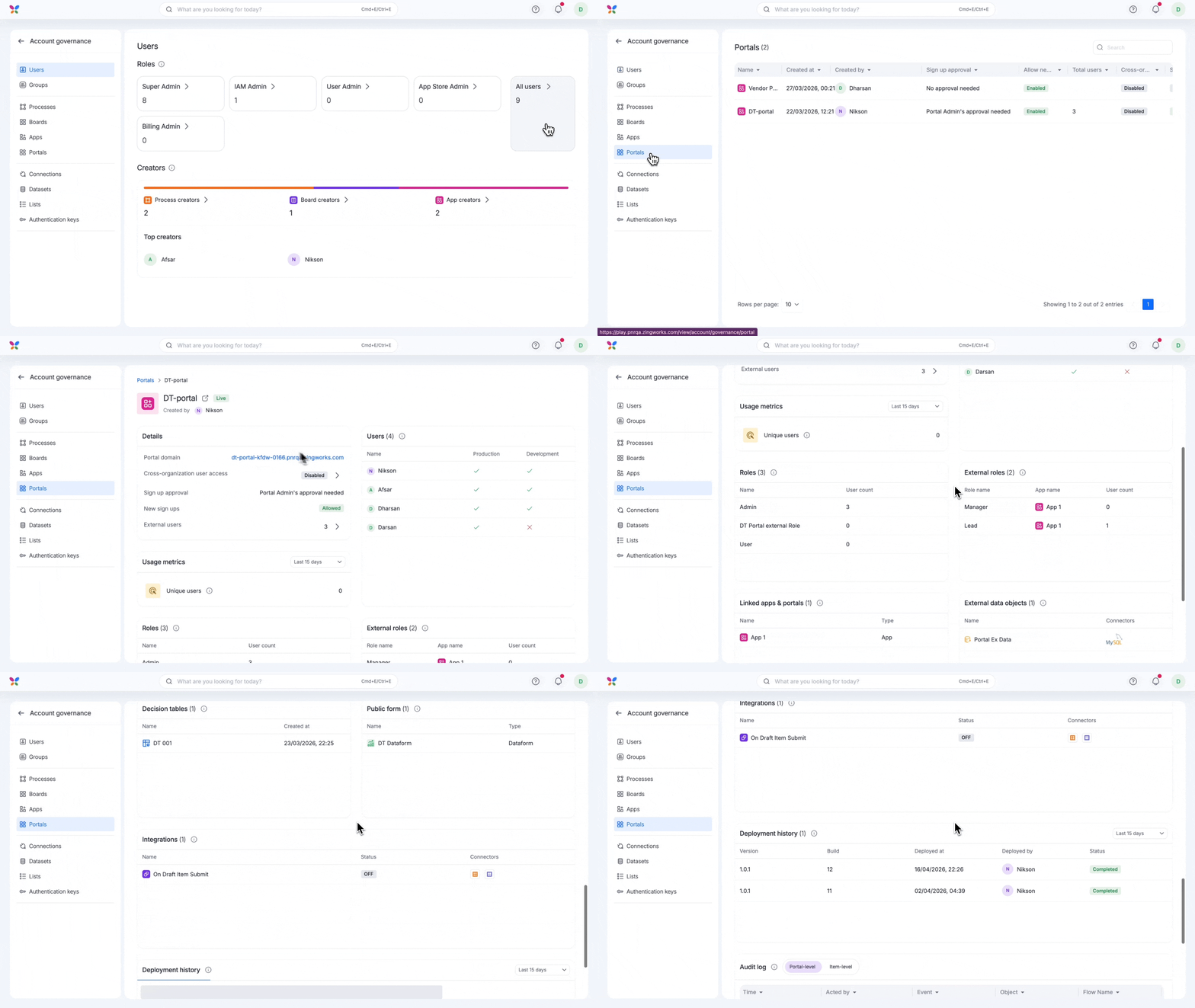
Click your profile at the top right corner inside Kissflow and click Account governance > Portals tab on the left. You can find the list of portals in your account along with their details.
Clicking any portal takes you to its detailed page with deeper insights. View the portal’s status and creator details. Apart from these details, you have a lot of other sections where you can learn more about the portal.
Users
The Users section shows everyone who is part of the portal across environments. Monitoring the portal membership helps you control who can interact with the portal, reducing the risk of data leaks or unapproved changes.

Note:
This is the only section available in the detailed page of a draft portal.
Usage metrics
Unique users - Check the number of distinct users who accessed the portal in the selected time period to understand real engagement.
Roles
This section lists the various roles defined within the portal, along with the number of users assigned to each role. This helps you assess how responsibilities are distributed within the portal.

Clicking a role takes you to its detailed page, where you can get more information about:
Users - View the list of users in each role.
Flows - See which flows users in this role can access, ensuring access stays authorized.
Reports - Track report access for better control and compliance.
Views - Monitor which views are available to each role.
External roles
Identify any roles that are linked to this portal from other apps/portals in your account. These roles may bring in users who aren’t explicitly part of the portal but still have access due to broader role assignments elsewhere. Monitoring these links is key to minimizing unintended data exposure and ensuring that only the right users can access sensitive information within the portal.

Clicking a role takes you to its detailed page, where you can get more information about:
Users - View the list of users in each role.
Flows - See which flows users in this role can access, ensuring access stays authorized.
Reports - Track report access for better control and compliance.
Views - Monitor which views are available to each role.
Linked apps & portals
This section shows you a list of apps and portals that are linked to this portal and look up data from it. This section helps you:
Understand where this portal’s data is being consumed externally, supporting better data visibility.
Identify potential data exposure, especially if sensitive information is being accessed by multiple portals.

External data objects
The External data objects section lets you see if the portal connects to any third-party platforms to fetch or interact with external data. Monitoring these connections is essential for understanding where your portal’s data is flowing and helps you assess any potential risks related to data security or compliance.

Clicking an external object takes you to its detailed page. This page provides a list of all the flows that retrieve and display data from that external object.
Flows created
In this section, you can get a list of all flow types created within the portal - processes, boards, and dataforms. This gives you a sense of how the portal is structured.

Clicking a flow directs you to its detailed page, which lets you view the information below:
Roles and activity
Public forms (process and dataform)
Integrations
Sensitive fields
Flow relationships
Flows looked up from/to
Dependent and source flows (process and board)
Logs - Download logs, print logs (process and board), and export logs.
Custom components
You can view the list of custom components built in this portal, such as widgets or specialized interfaces. It’s helpful to identify unused or outdated components that can be retired to streamline the portal.

Decision tables
In this section, you can view all the decision tables created in this portal.

Public forms
In this section, view all the process forms and dataforms in this portal that can be accessed from outside Kissflow. Any information in these forms is exposed externally.

Integrations
This section contains the list of integrations used within the portal. It displays the status of each integration along with the connectors used, whether they link to internal Kissflow systems or external platforms. Reviewing this information helps you ensure that the portal is only connected to the intended systems, reducing the risk of unauthorized data exposure.

Deployment history
This section provides a complete timeline of the portal’s deployment activity, including details of when changes were deployed and who made them. Each entry logs the deployment date and time, and the user responsible for the deployment.
This deployment history is vital for:
- Maintaining a reliable audit trail of all portal changes.
- Tracking accountability by identifying who made specific updates.
- Troubleshooting issues by pinpointing the exact version or deployment that introduced a change.
By monitoring the deployment history, you can ensure that all changes are intentional and authorized.

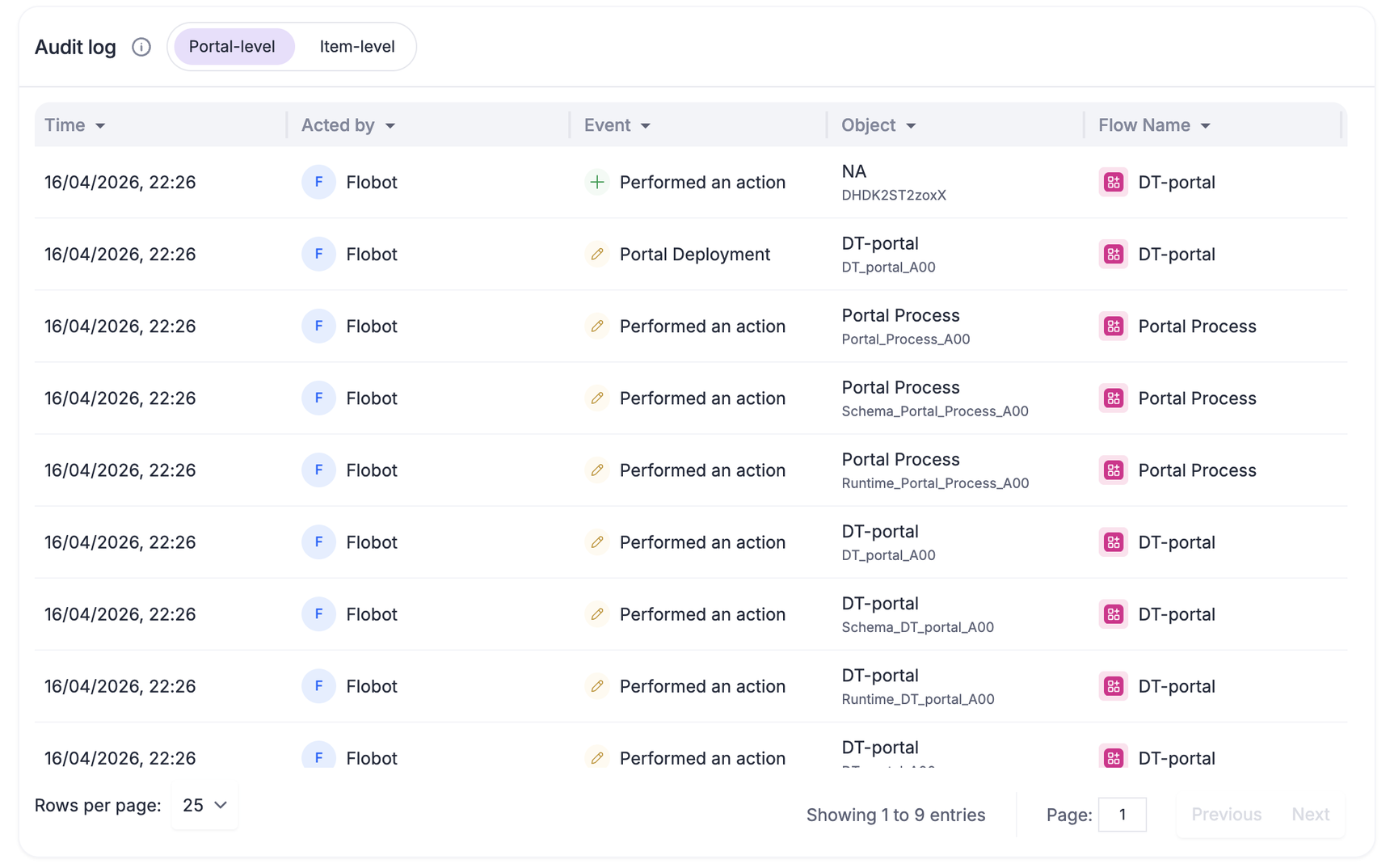
Audit log
By utilizing the audit log, you can gain visibility and valuable insights into activities performed in the portal. It provides a comprehensive record of all actions with respect to time, allowing for detailed analysis and a deeper understanding of the portal. Based on this, you can track and examine various activities in the portal for enhanced monitoring and security purposes.