
Entra ID connector
What is Entra ID?
Microsoft Entra ID offers a cloud-based identity and access management (IAM) solution to enterprise customers.
About Kissflow's Microsoft Entra ID integration
The Microsoft Entra ID connector of Kissflow Integration enables you to connect and synchronize your Microsoft Entra ID folders and files with Kissflow apps. You must have a valid Microsoft Entra ID account and be a paid Kissflow customer to integrate with Entra ID.
For example, if you want to provision users from your Kissflow account to Entra ID at regular intervals, you can create a multi-step integration. The Kissflow Scheduler will schedule a trigger event at a specific time, the action will be the User details connector, which will pull the most recent user details from your Kissflow account, and the final action will be the Entra ID connector, which will add these users to your Entra ID account.
Use the Microsoft Entra ID connector to receive data from other flows or apps to perform specific actions. The connector for Microsoft Entra ID does not support any trigger events yet.
Actions in Microsoft Entra ID connector
Action events |
Description |
Add a user |
This action creates a new user in your Entra ID account. |
Update a user |
This action updates an existing user's details in your Entra ID account. |
Microsoft Entra ID connector as an action step
In your Kissflow account, click the Create button in the left navigation panel and select Integration from the list. Enter a unique name and description for your integration and click Create.
Once inside your editor, set up a trigger and action steps as necessary, for example, your trigger event can be a Kissflow Scheduler and action step can be the User details connector.
- After setting up your trigger and action step above, click the Add button (
 ) next to set up your action step. Search for Microsoft Entra ID and select the desired action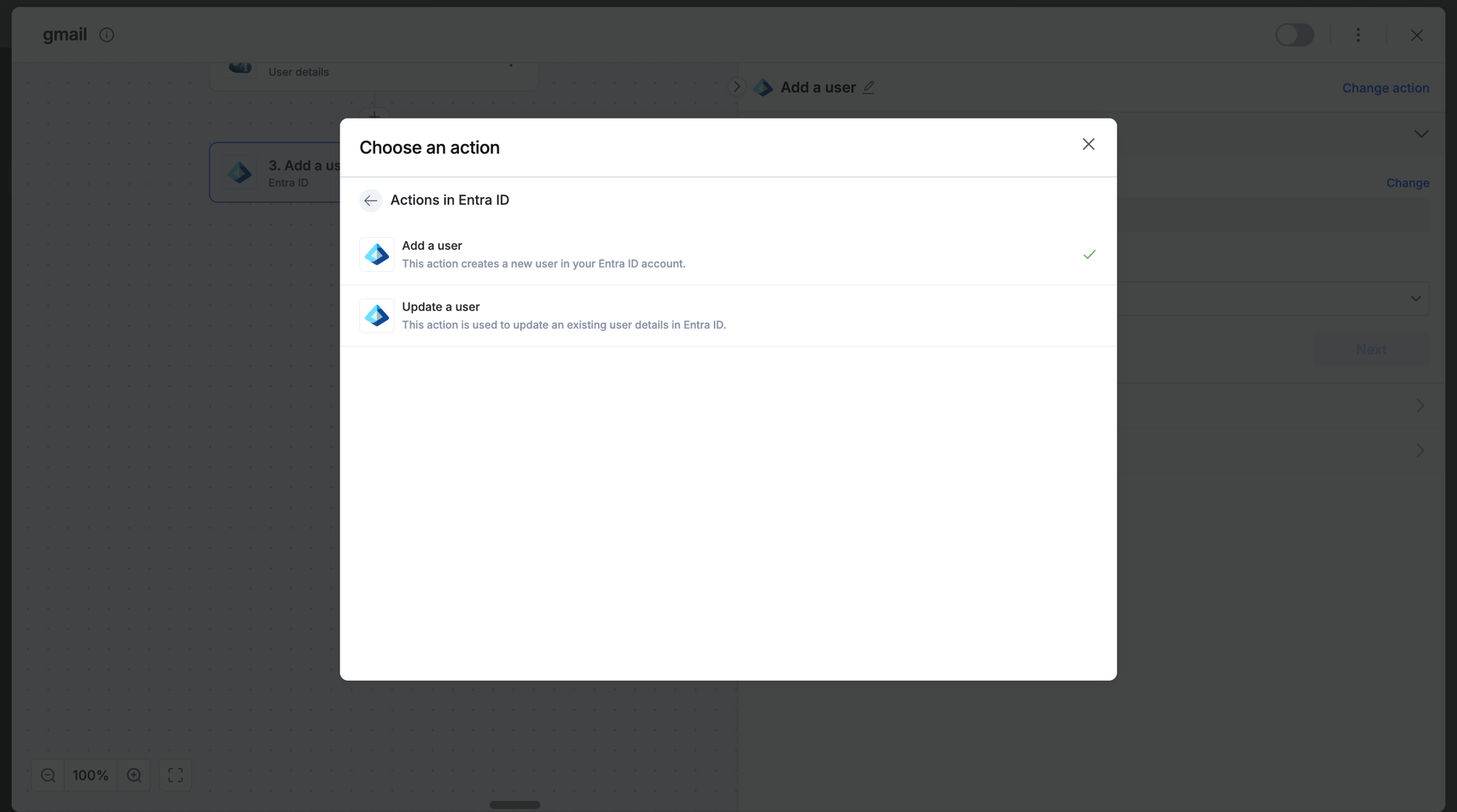
- After choosing your action event, authenticate the connector. Click +Add an account and sign in using your Microsoft account. Kissflow uses Microsoft's OAuth for authentication.
- After authenticating with your Microsoft account, add relevant values against the Microsoft Entra ID form fields. You can hit Refresh fields to view all the updated fields in the selected Microsoft Entra ID form.
You can also map Microsoft Entra ID fields from your trigger step or fields from your previous action steps. These values will be automatically added to item fields after the action is executed. - Click Next.
- After a successful configuration, test whether your Microsoft Entra ID action step is set up correctly by clicking the Test button. The connector will pull field data from your selected Microsoft account and display it as a JSON output. Similar to the trigger step, errors are notified to you right away. Fix them before retesting the action step.
Setting up a Microsoft Entra ID connector
After creating a custom workflow with your Microsoft Entra ID connector's action steps, switch ON the toggle button to activate the integration run. Once a trigger event occurs, Microsoft Entra ID actions are activated.
To ensure your integrations are properly configured and tested, review our best practices guide for tips on building robust and maintainable solutions.