
Gemini connector
What is Gemini?
Google's Gemini is a family of multimodal generative AI models designed to understand, process, and combine various types of information, including text, code, images, and documents.
About Kissflow's Gemini integration
The Gemini connector in Kissflow Integration brings Google’s advanced generative AI capabilities directly into your automated workflows. You can leverage Gemini’s language understanding to generate content, analyze documents, evaluate data, and automate complex communication steps without leaving the Kissflow platform.
To use this integration, you must have a valid Google account with API access and be a paid Kissflow customer.
Use case example
A global enterprise vendor management team processes cross-border supplier agreements. When a new vendor contract or inquiry is submitted in a Kissflow Process, it triggers the Gemini connector:
- Compare documents: Gemini compares the uploaded draft against standard compliance guidelines.
- Translate content: Gemini translates internal supplier notes into the local regional team's language.
- Categorize and route content: Gemini tags the request priority and assigns it to the appropriate risk management team.
- Generate email: Gemini drafts an initial acknowledgment email to the supplier, including next steps and deadlines.
Actions in the Gemini connector
Actions |
Description |
Generate content |
Generates text content based on your prompt and context. |
Generate meeting notes |
Extract key discussion points, decisions, action items, and next steps from a meeting transcript. |
Summarize content |
Condenses documents, generates meeting notes, or analyzes files. |
Generate email draft |
Drafts emails including subject lines and calls to action. |
Categorize content |
Categorizes content and routes it to the appropriate team for handling next steps. |
Validate data |
Verifies input data against rules to return pass or fail results. |
Translate content |
Translates the input text into a target language. |
Compare two documents |
Compares two documents to identify differences and unique elements. |
Custom prompt |
Sends a specific instruction to the AI to get a tailored response. |
Analyze image |
This action analyzes an image file and extracts insights, details, or text based on your prompt. |
Configuring the Gemini connector
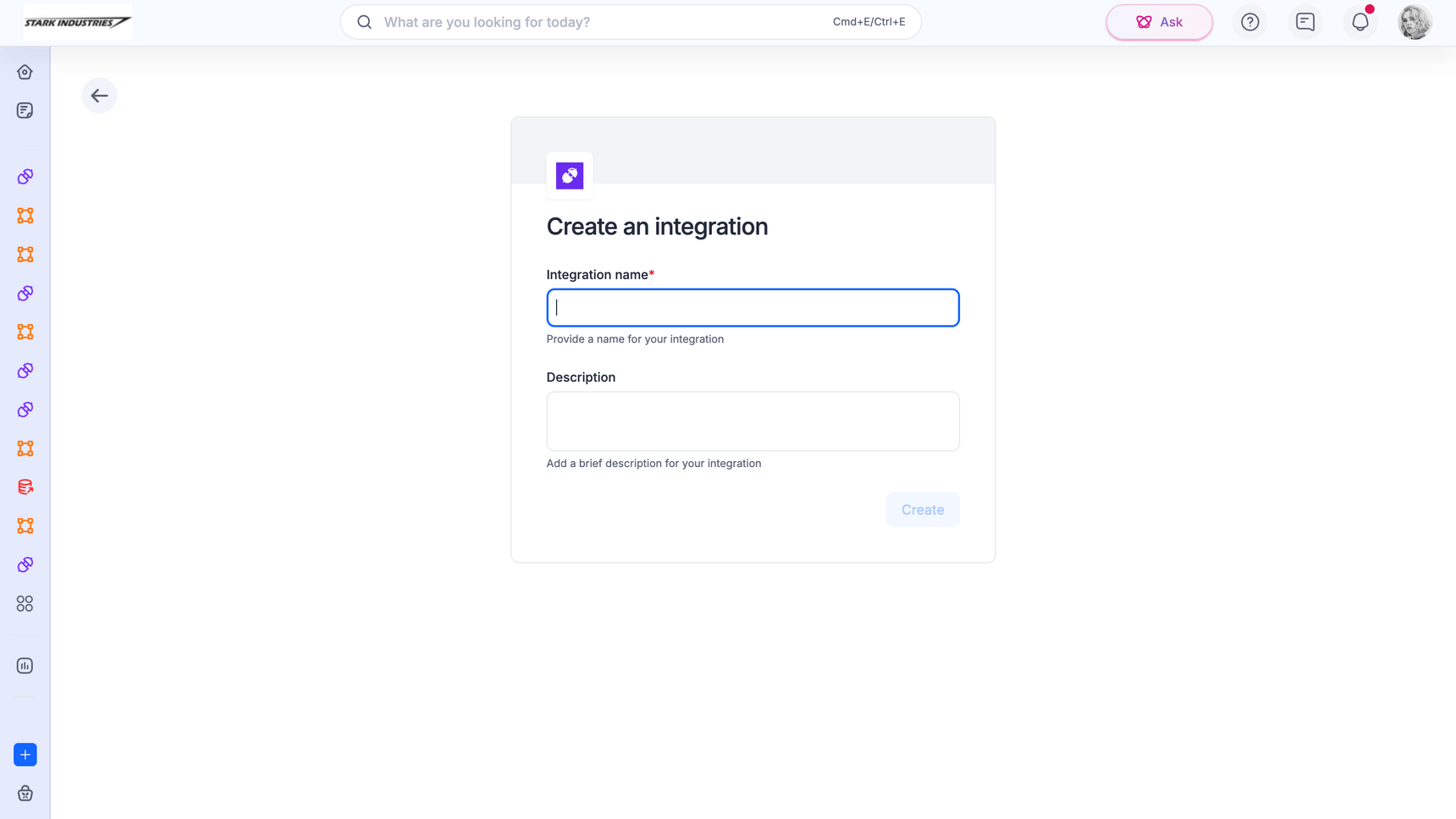
Log into your Kissflow account, click the Create button in the left navigation panel, and select Integration.
Enter a unique Name and Description for your integration, then click Create.
Set up your trigger step (for example, a Kissflow dataset trigger when an existing row is updated).
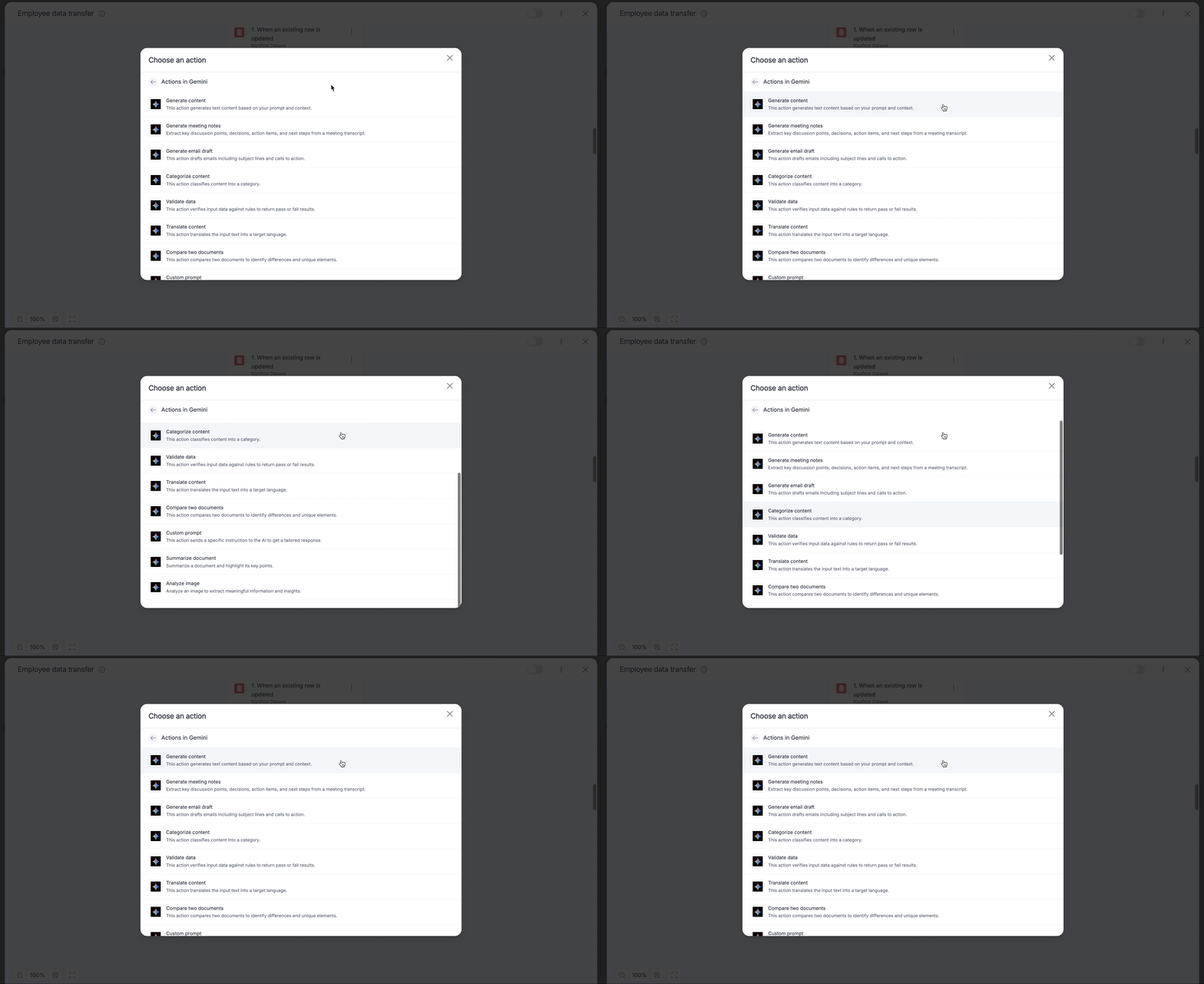
Click the Add button (+) to set up your action step. Search for Gemini and select your desired action.
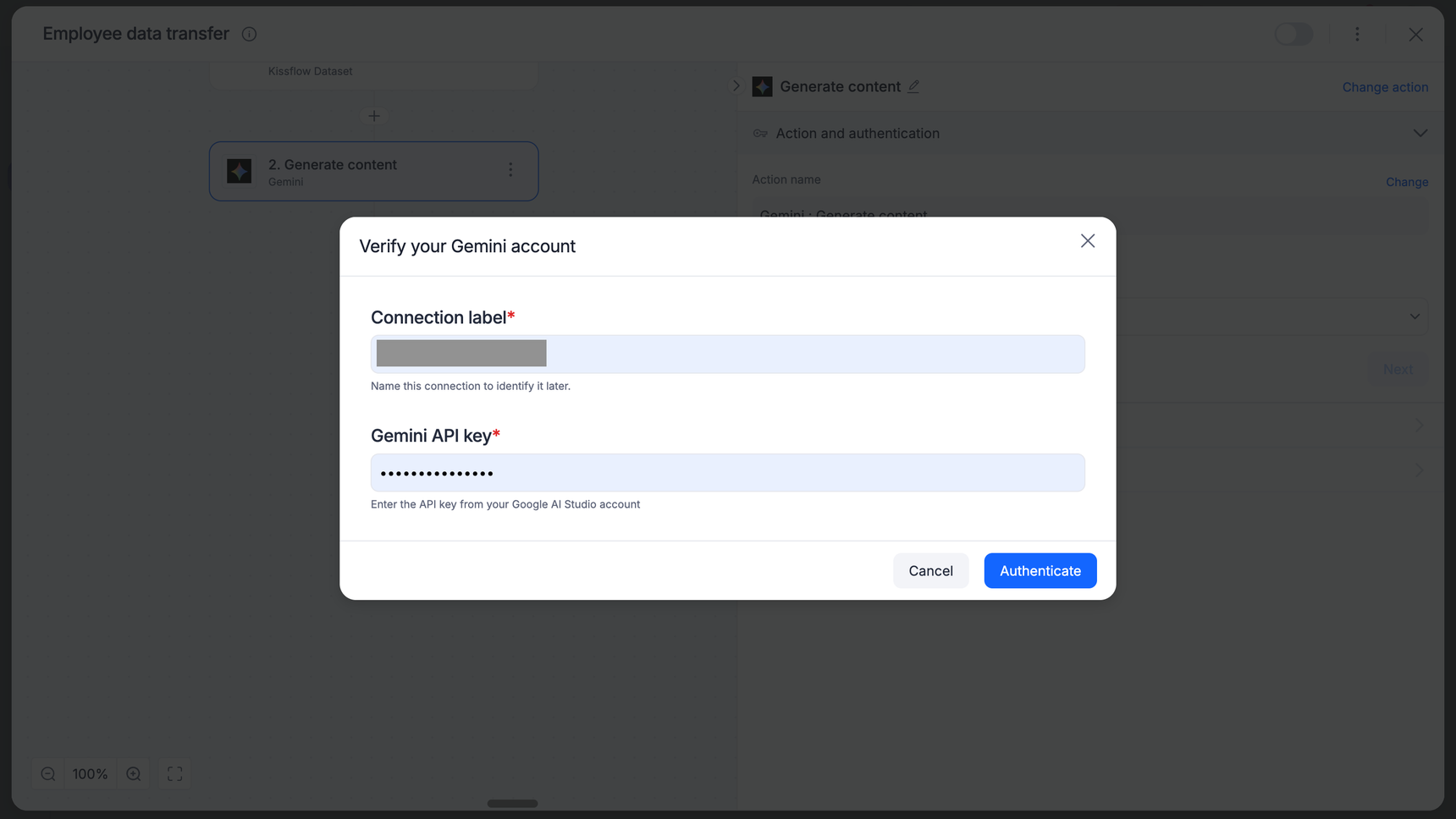
Authenticate the connector by clicking + Add an account. Enter your Google Gemini API Key when prompted.
Configure the action by mapping dynamic fields from your trigger step (for example, contract text, email body, target language) into the action configuration fields.
Click Test to send a sample request to Gemini. Results will display as JSON output.
Troubleshooting
Model or token limit exceeded: If processing long documents with Compare documents or Summarize content, ensure your input text does not exceed the model context length limits.
Invalid API Key: Verify that your Google Gemini API Key has active billing enabled and sufficient API quota permissions.
Mismatched input parameters: For actions like Validate data or Compare documents, ensure both input parameters contain string-based or plain-text input formats.
Setting up the integration
After successfully configuring and testing your integration steps, toggle the switch in the top-right corner to On. Once active, the Gemini connector will execute automatically whenever the trigger event occurs